English
List of Transactions
From the main menu, go to Real Estate >> Transactions >> Transactions.
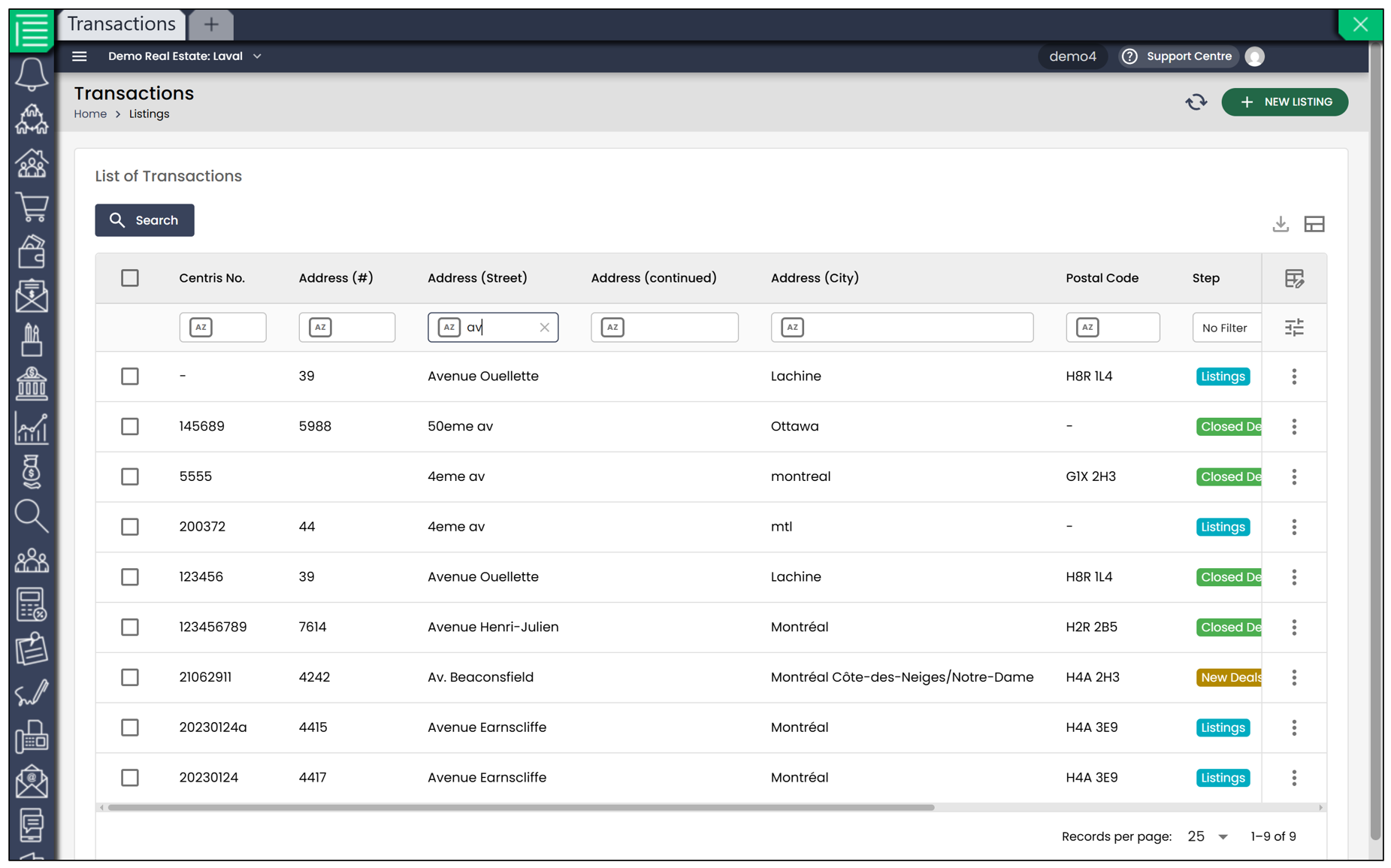
You can add a listing, sale, etc., by clicking New Listing.
Transactions can be sorted and filtered in several ways:
- Centris Number : Allows you to search for a transaction using its Centris number.
- Alphabetical/numerical search based on address : The highlighted letters or numbers allow you to display transactions whose street name matches the selected criterion.
- Step : By selecting the desired step, such as Listings , only transactions corresponding to that stage will be displayed.
- Transaction Date : Allows you to filter transactions according to their date.
- Actual Sale Date : Allows you to filter transactions according to the actual sale date.
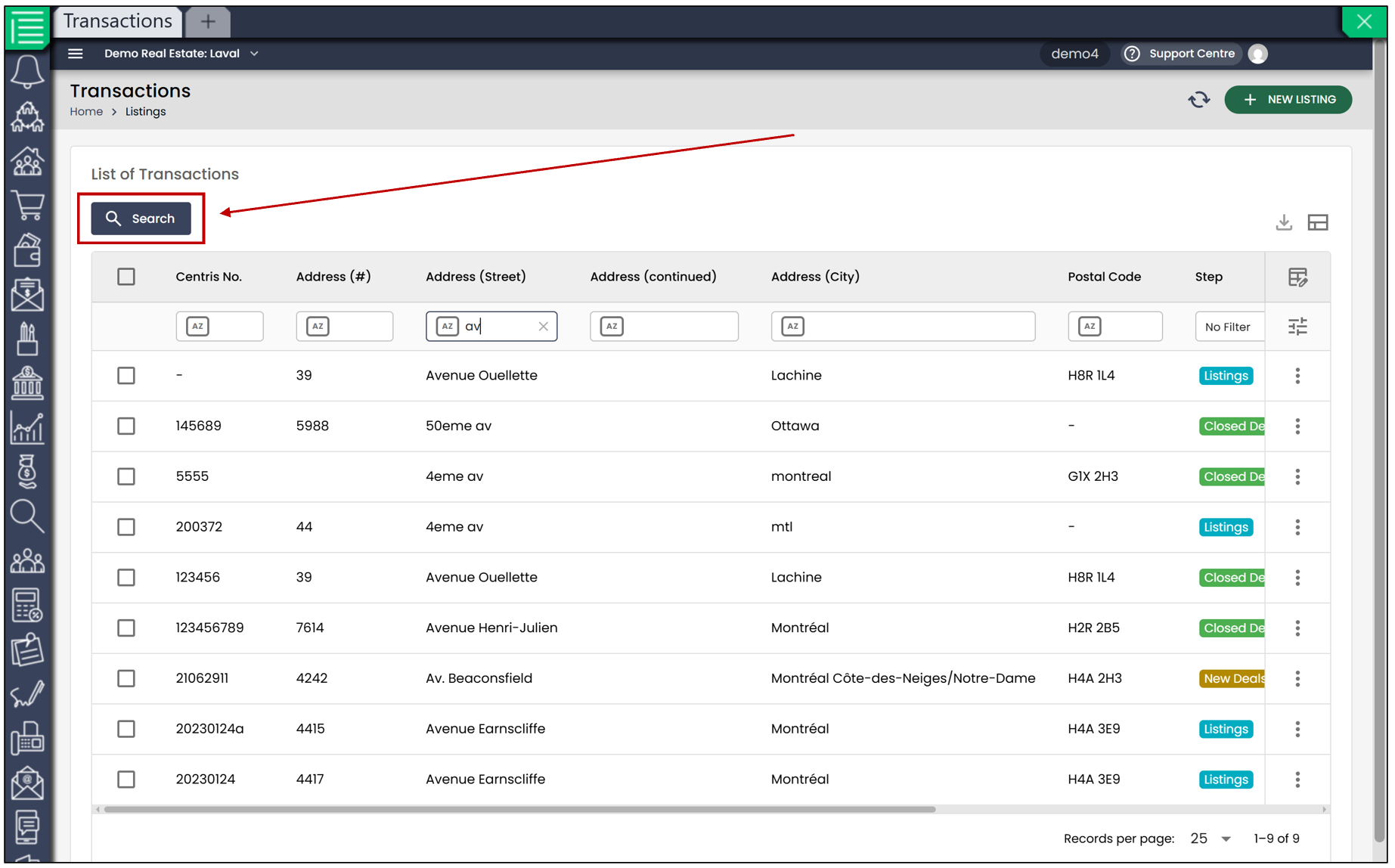
For more specific results, click Search.
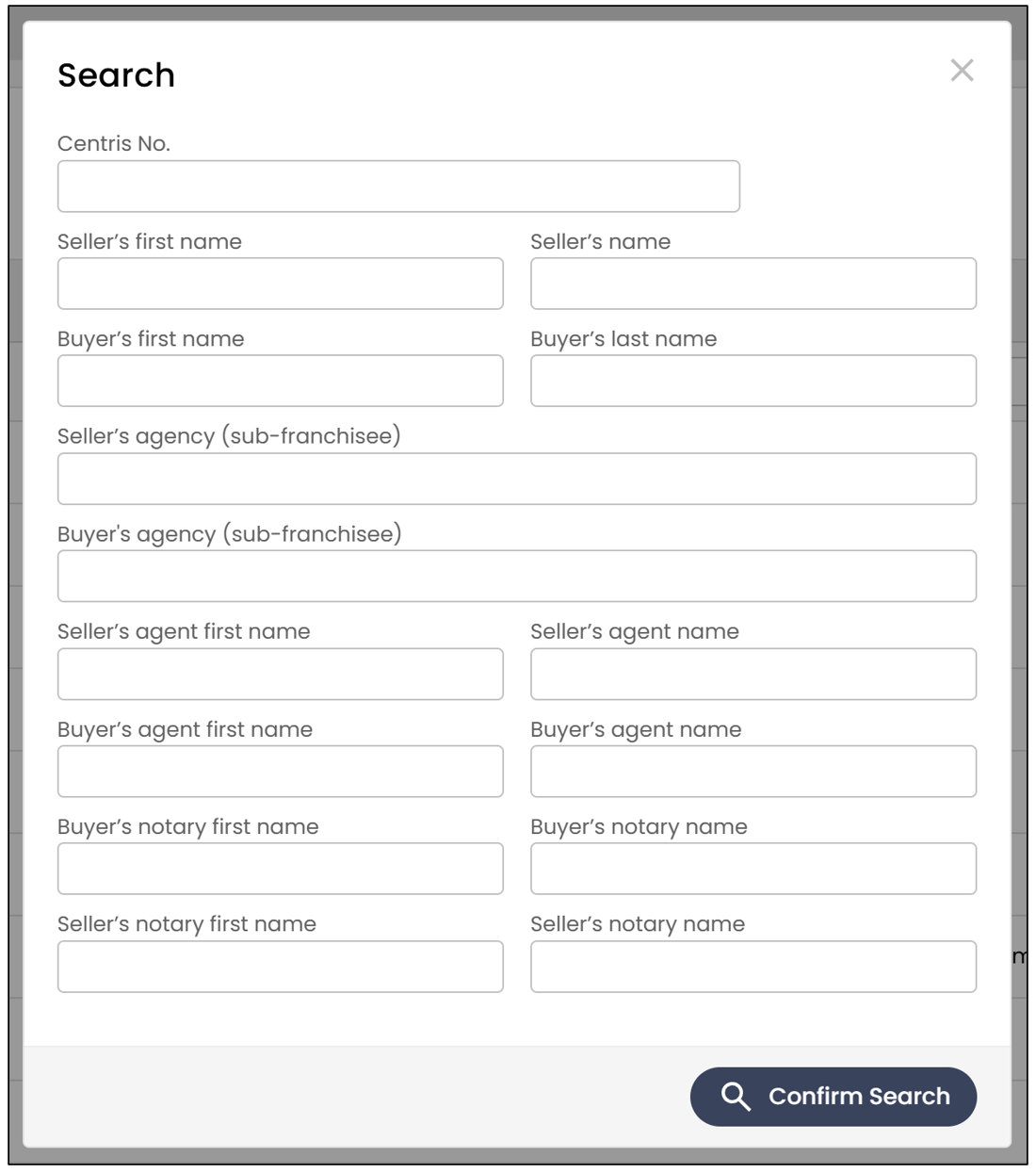
Search Tool
You can also use the search tool to find a specific transaction.
Click the

icon in the left-hand menu, then select Transactions.
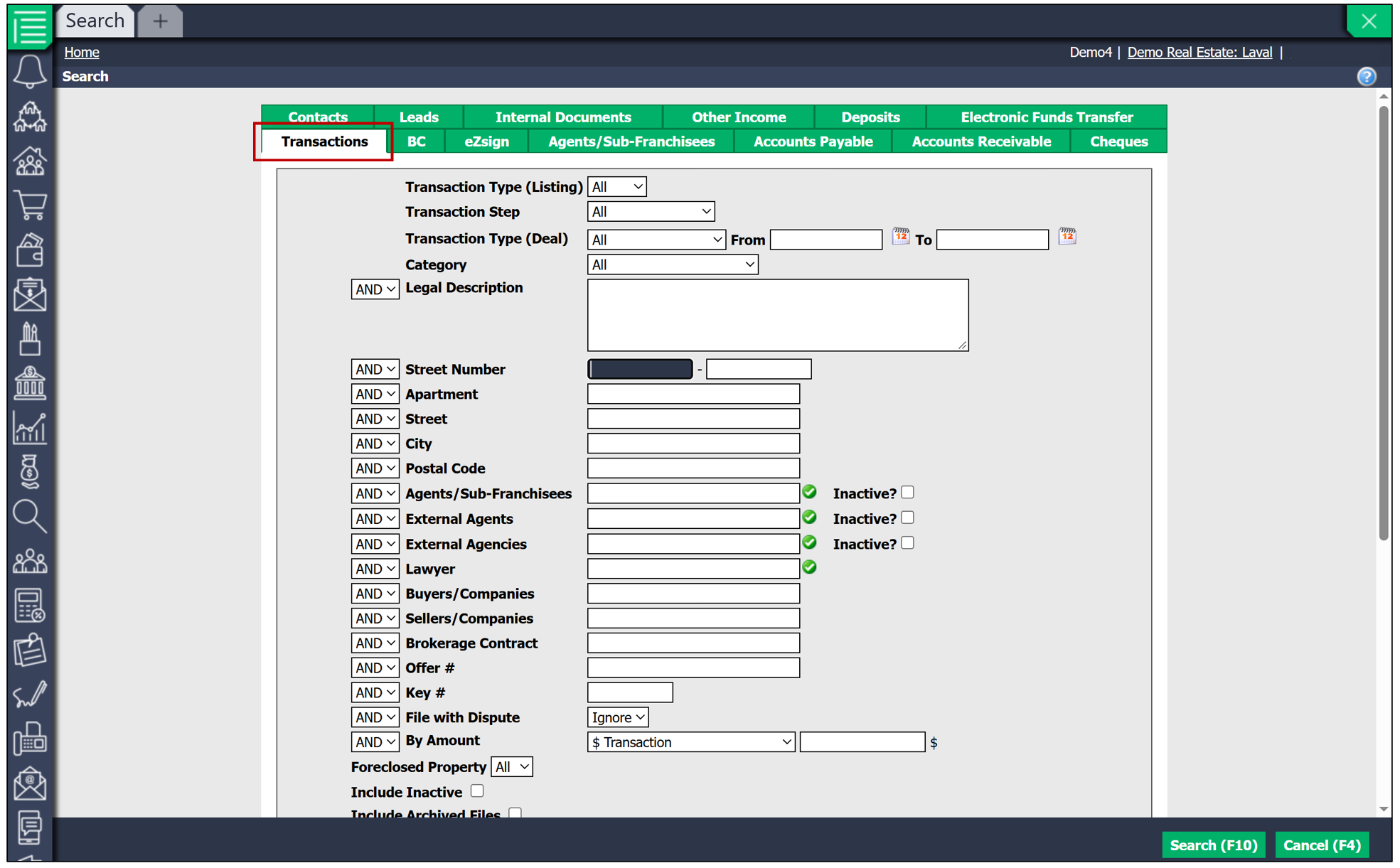
Select the Transaction Step you are looking for, such as Listings , then click Search.
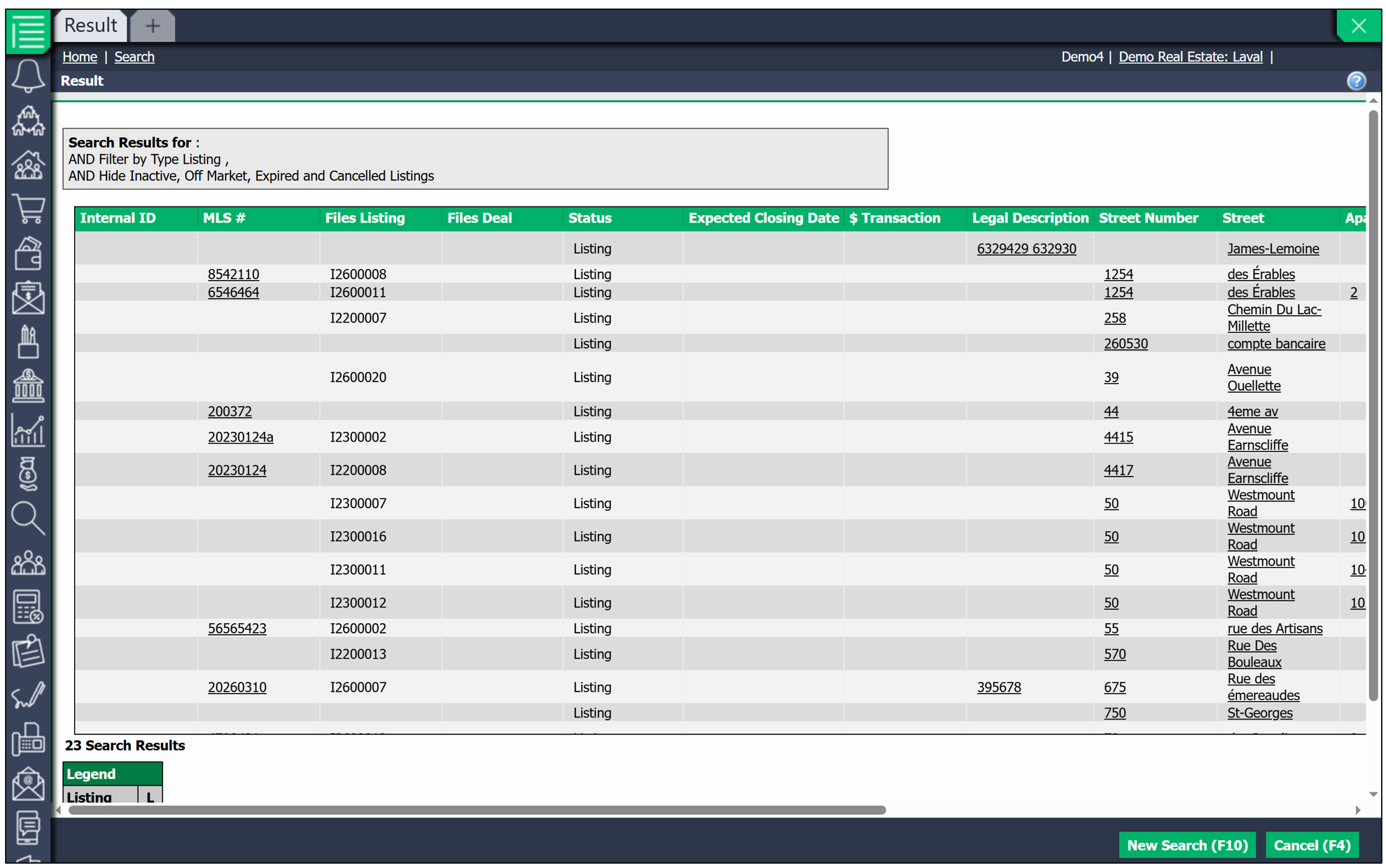
You will need to scroll from left to right to view all columns.
Opening an Item in a New Tab
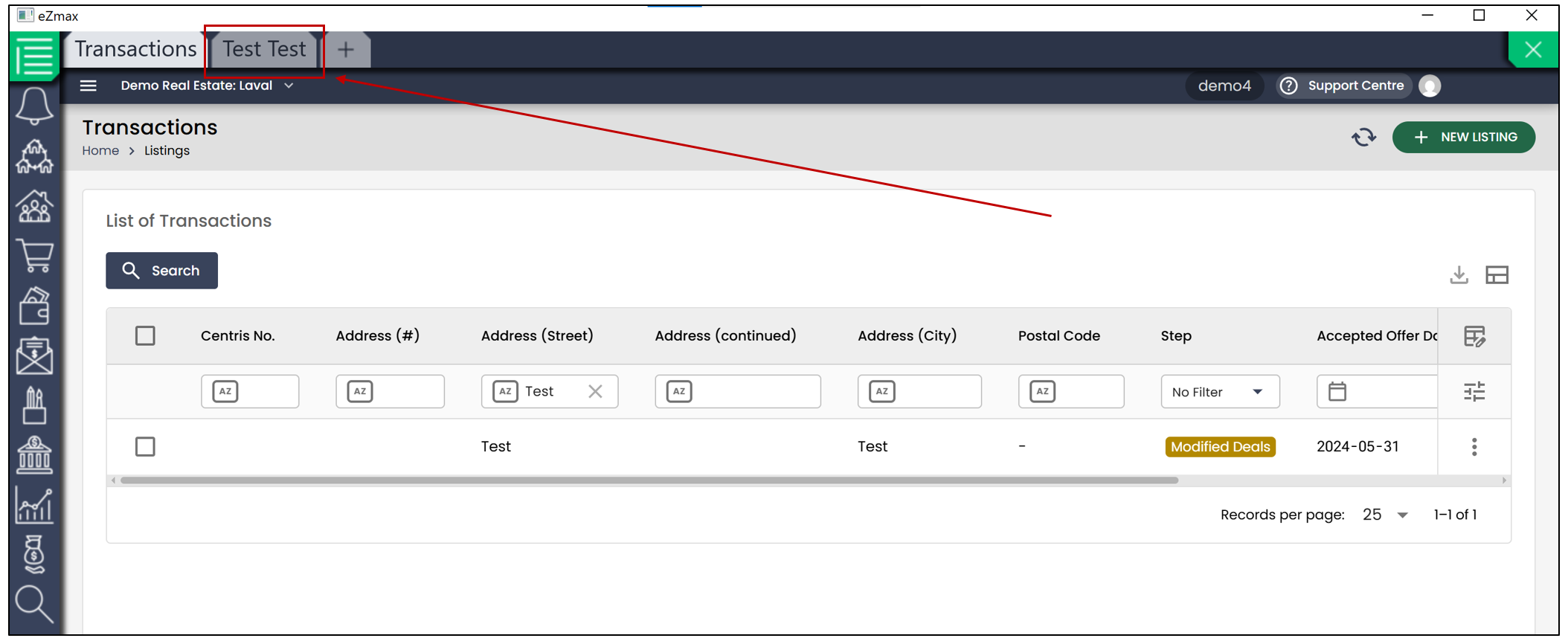
When viewing a list that uses the new interface, some items may still open in the old interface during the transition period. In this case, if you open an item directly and then return to the list, your filters may be reset.
To keep your list and filters, you can open the item in a new tab:
- On Windows , hold down the Ctrl key and click the item.
- On Mac , hold down the Command key and click the item.
The item will then open in a new tab, allowing you to keep your list and the filters applied in the original tab. You can therefore open multiple items in different tabs without losing your configuration.