

English
Configurate REMAX LLC in eZmax
Configurate REMAX LLC in eZmax
- Confirm Permissions
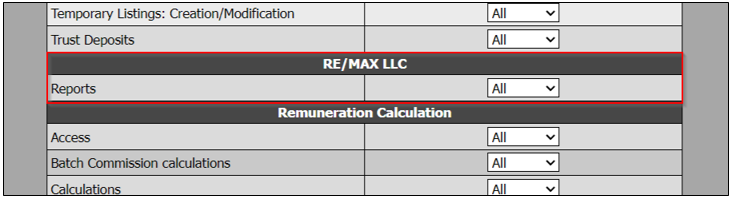
The brokerage will need to go into the user permissions and turn on the RE/MAX Reporting option.
NOTE : Only turn on this feature for the user(s) that will be doing the data transmission
Go to Admin >> Admin Configuration >> Users >> Select User.
Once user is selected >> Actions >> Manage Authorizations.
Select Real Estate Transactions tab >> Scroll to RE/MAX LLC section >> Select All from drop down >> Submit.
- Confirm the office ID
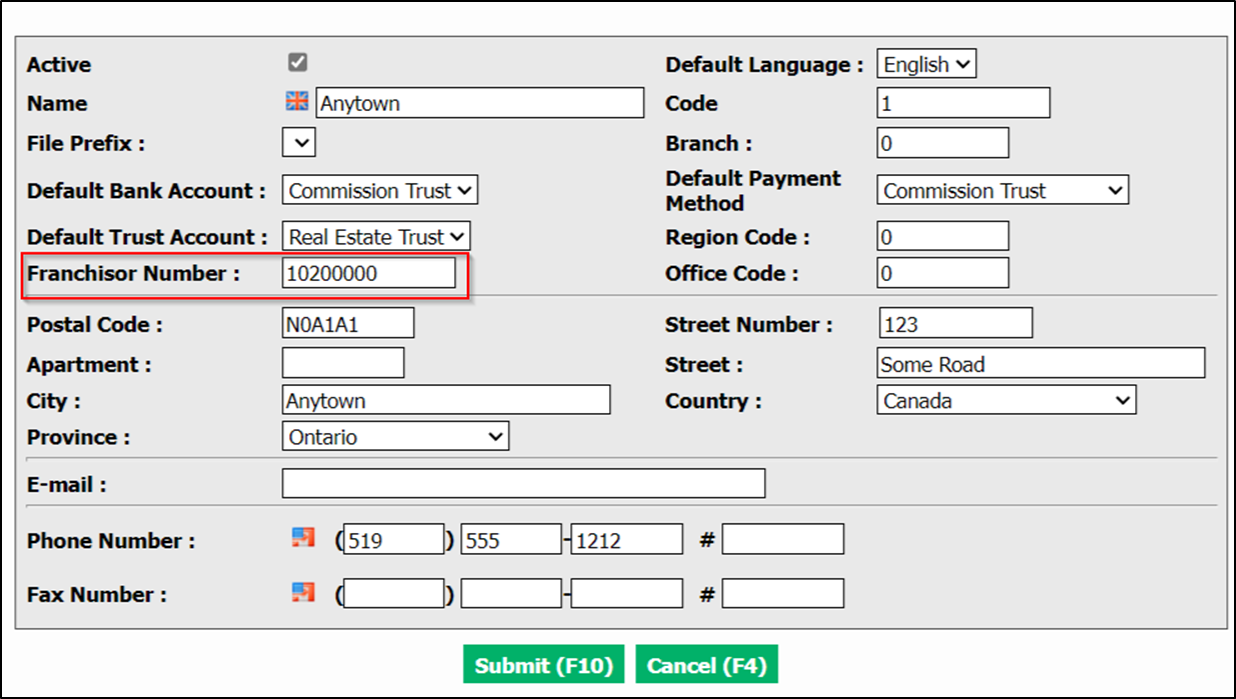
From Main menu >> Admin >> Company >> Departments.
Click on the desired department Name to display its information.
If you want to make changes to the department information, click on Actions >> Edit Department.
Enter the number >> Submit
- Confirm Agent ID numbers (Franchisor Number)
Click on the Agents icon or from your Main menu >> Real Estate >> List of Agents and Sub-Franchisees.
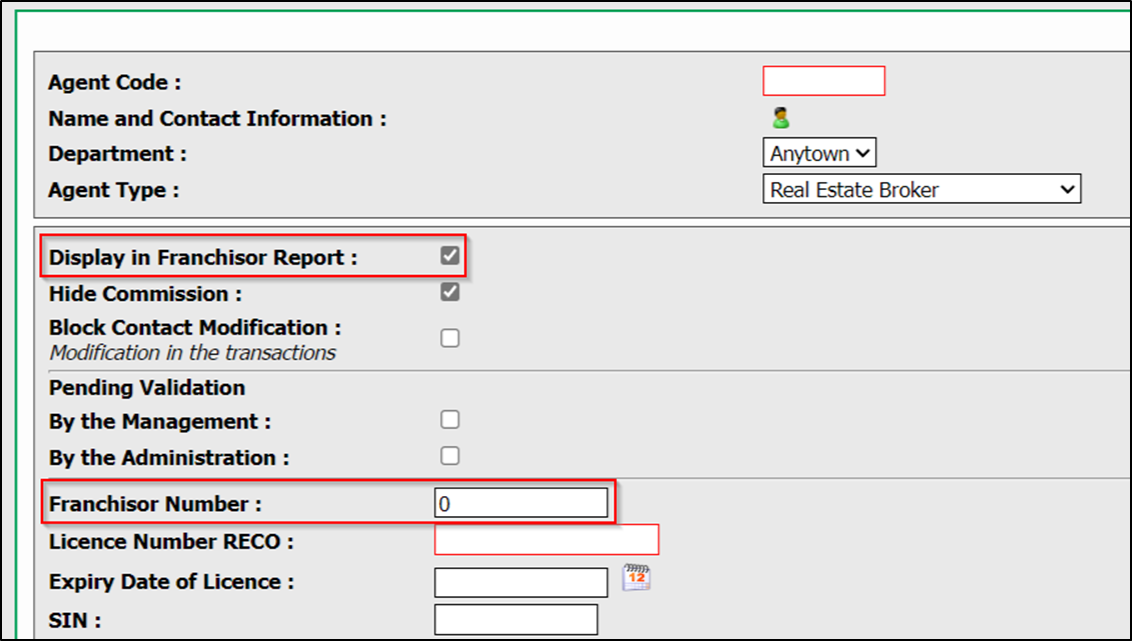
To modify an existing agent, select it from the List of Agents and Sub-Franchisees and click on Actions >> Edit Agent.
Confirm the Franchisor Number >> Submit.
WARNING
Make sure that in the Agent’s profile that Display on Franchisor Report is checked off
NOTE : you can always verify with LLC to obtain the list of codes associated to your agents.
- Confirm Teams ID numbers (Franchisor Number)
From your Main menu >> Real Estate >> Real Estate Configuration >> Teams.
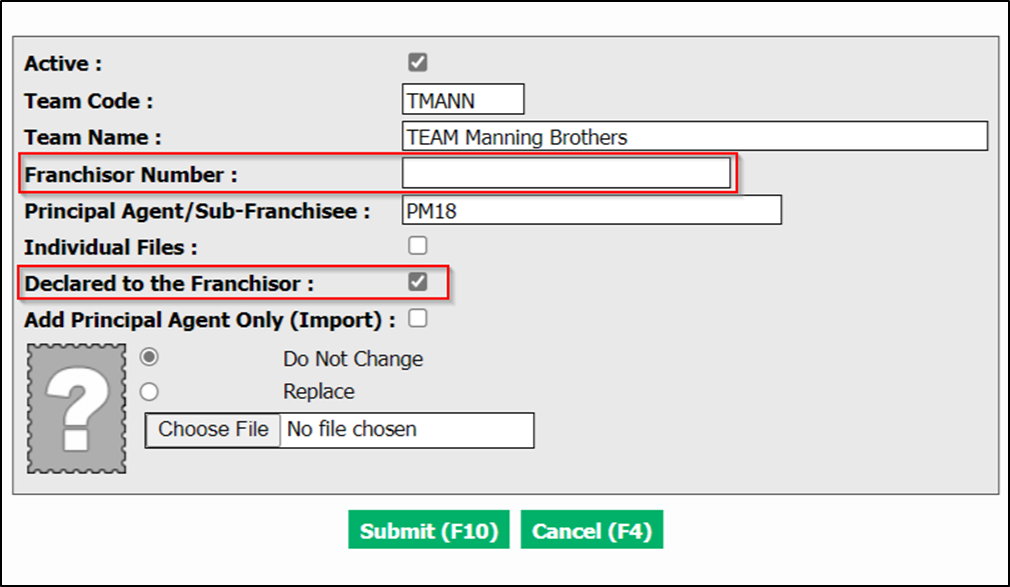
To modify an existing team, select it from the List of Teams and click on Actions >> Edit Team.
Confirm the Franchisor Number >> Submit.
WARNING
Make sure that in the team profile that Declared to the Franchisor is checked off.
- Adding a Team to a Transaction
WARNING
It’s really important to add the Teams correctly in the Transactions.
Locate the transaction in which you want to add a team using the search tool (Binoculars icon).
Click on Actions >> Edit Transaction.
You can add a team at two places in the transaction, either in the "Listing" section or in the "Deal" section.
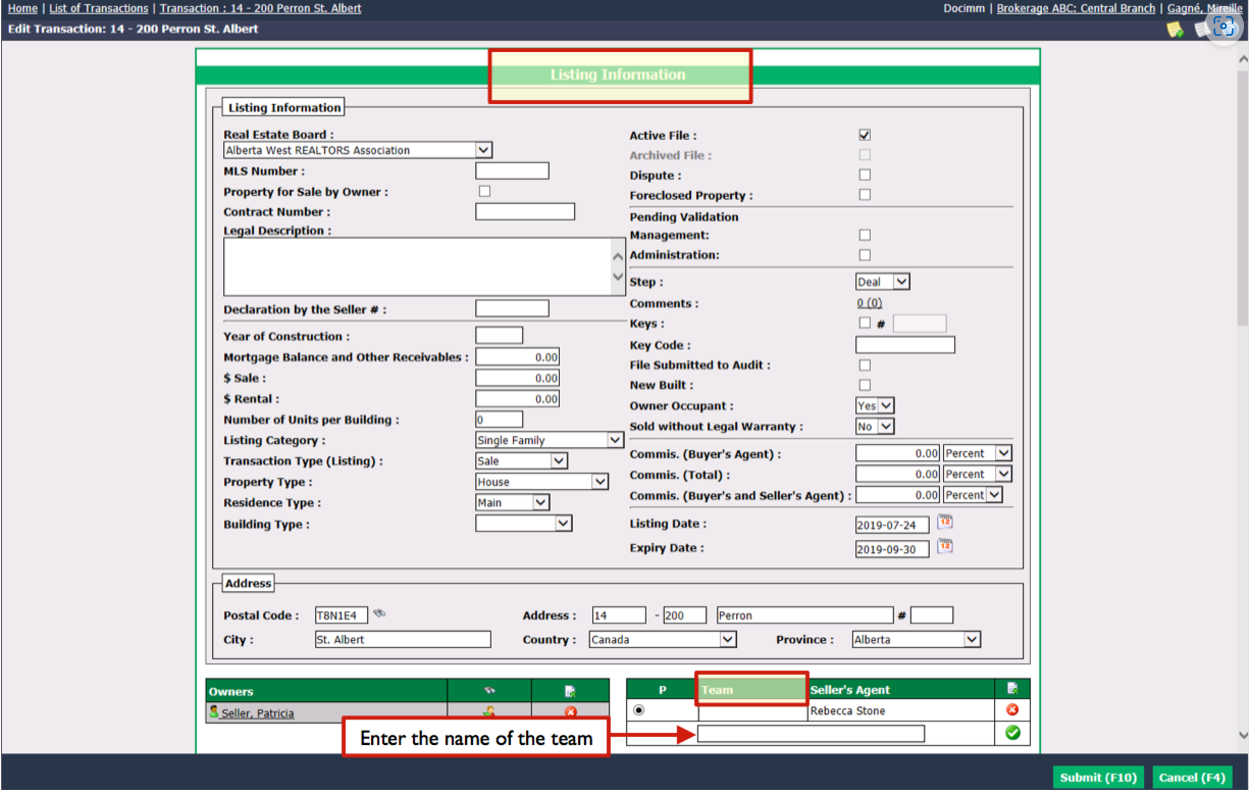
Listing: Go to the bottom of the "Listing Information" section.
Enter the name of the Team in the field and click on the Check Mark button. The agents from the team will appear in the "Listing Information" section.
Deal: Go to the bottom of the "Deal Information" section.
Enter the name of the Team in the field.
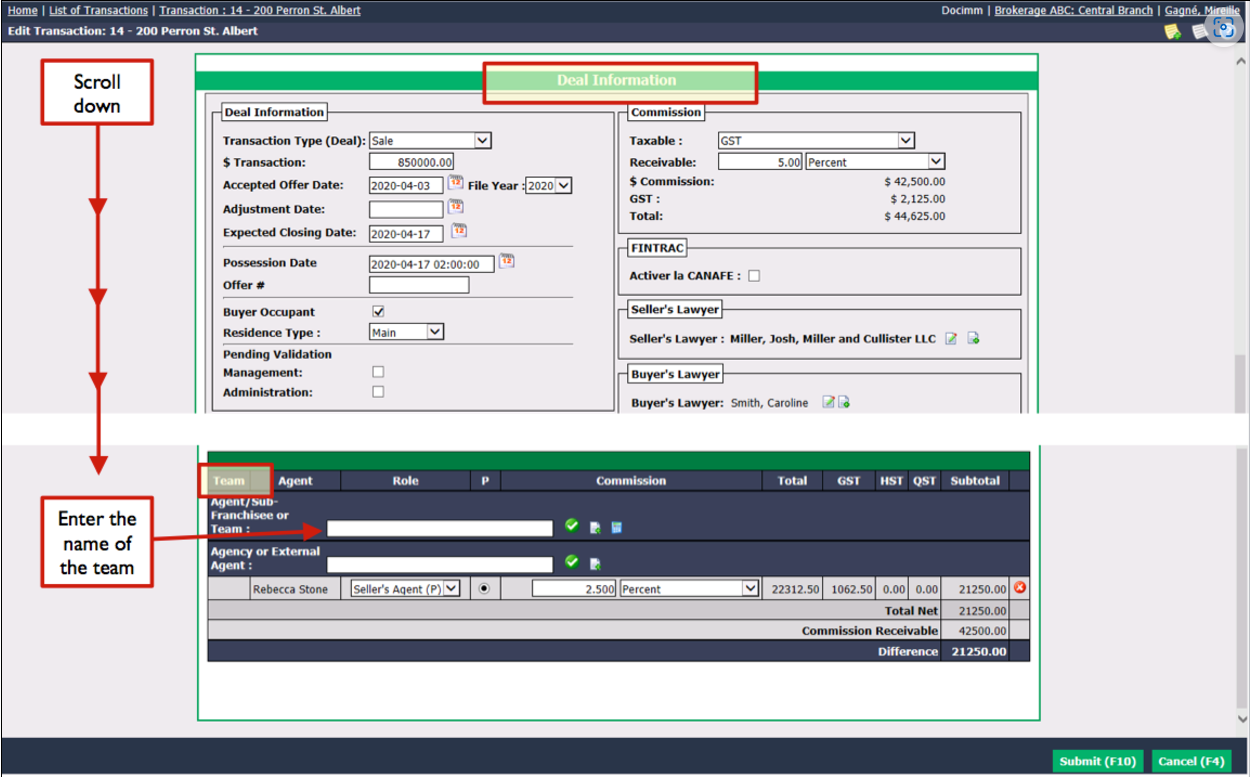
- Click on the Check Mark button.
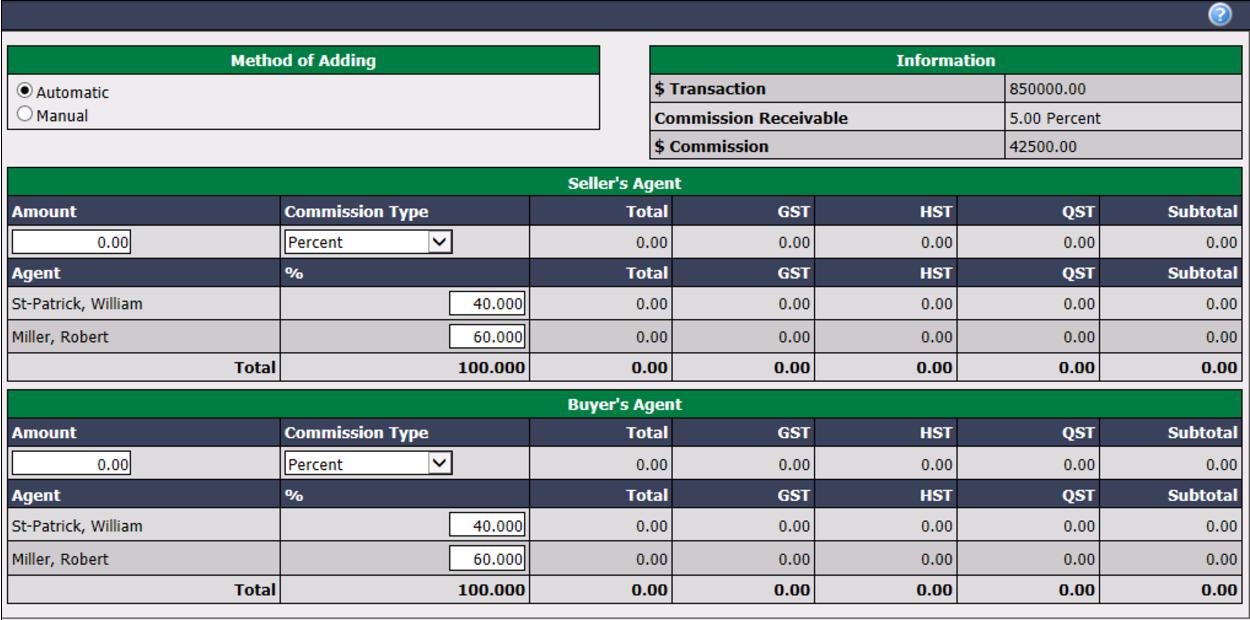
Method of Adding :
- Automatic : Check the box if you want the commission distribution among the agents involved in the deal to be automatically entered according to the settings established when the team is added in the system.
- Manual : Check this box if you want to enter yourself the commission distribution among the agents involved in the deal.
Enter the desired Amount and select the appropriate Commission Type for each of the sections "Seller’s Agent" and "Buyer’s Agent".
Click on Submit to confirm the commission distribution among team members. The window will close and you will return to the transaction page. The agents from the team will appear in the "Deal Information" section.
Click on Submit and the team will be added to the transaction.