English
Adding a Trust Deposit
Locate the deal in which you want to add a trust deposit using the search tool (Binoculars icon).
- Go to the "Deposits" section at the bottom of the listing in case the seller gives you money or the deal in case the buyer gives you money.

- Click on the Sheet with a + icon and the following window will appear.
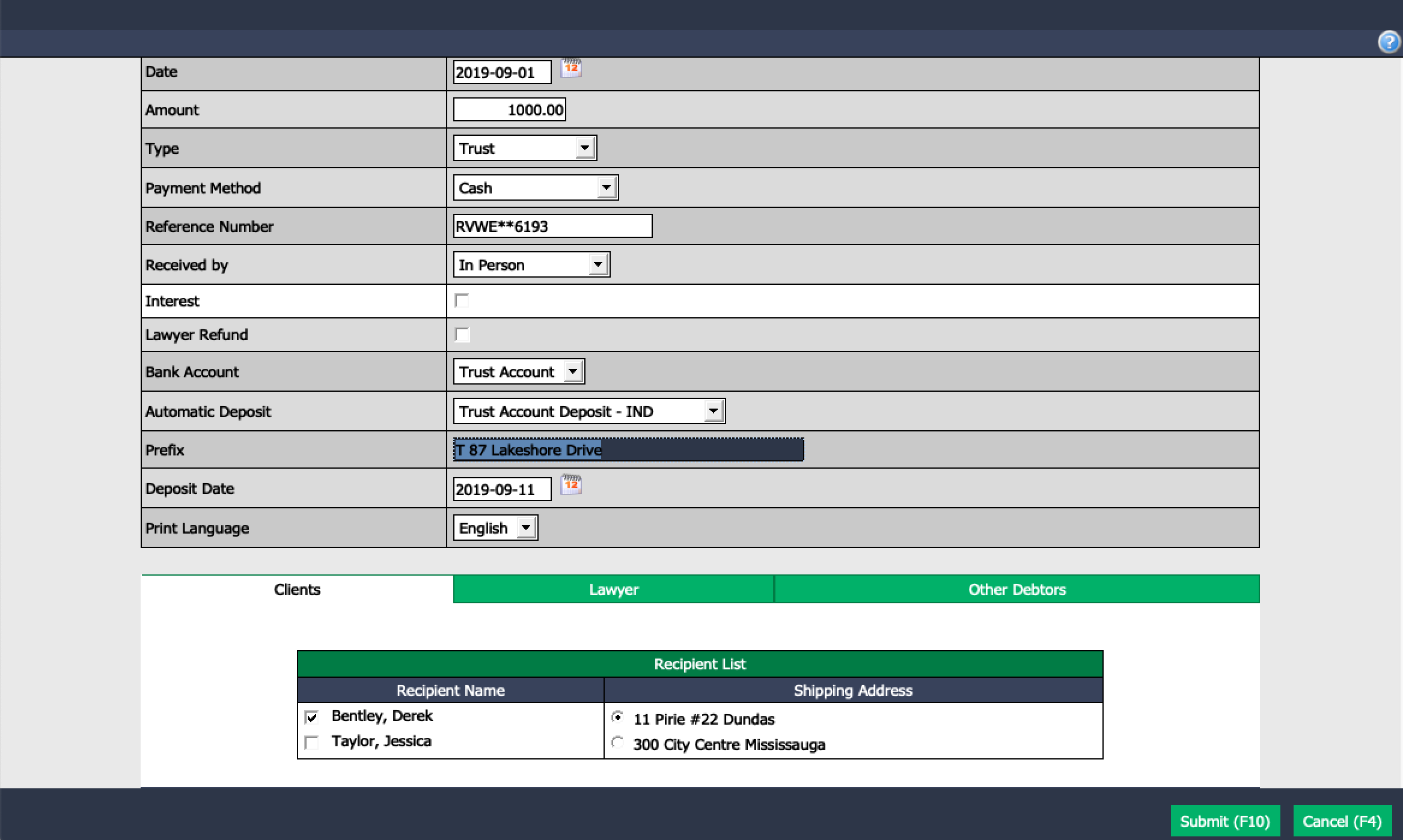
Enter all relevant information ensuring dates, amounts and options are entered correctly.
If you have Automatic Deposit set up for your office, ensure you select the appropriate individual or grouped automatic deposit so that the system will create the deposit for you. The screenshot above indicates that automatic deposits are set up in your program. For more information, please see the article Configuration of an Automatic Deposit.
Prefix should fill in automatically. If not, make sure to use a proper prefix so that bank reconciliations are easy to complete.
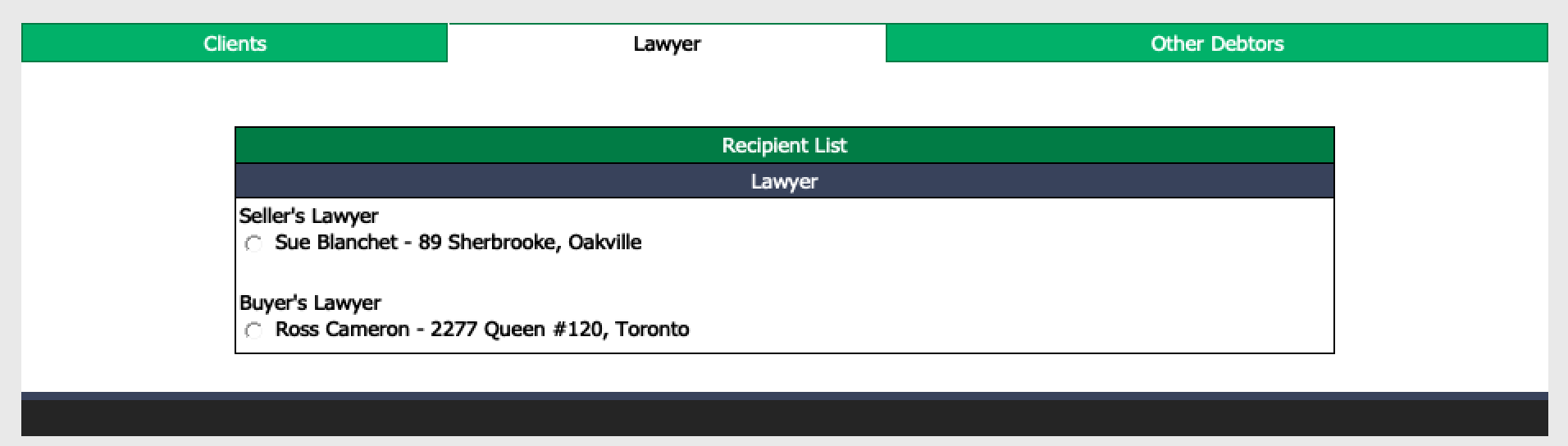
Make sure that the party receiving the deposit is selected under Recipient List. By default, the system proposes the Clients in the file (owners and buyers). However, recipients can be the Lawyers in the file or any Other Debtors. Selected recipients will appear on the deposit receipt.
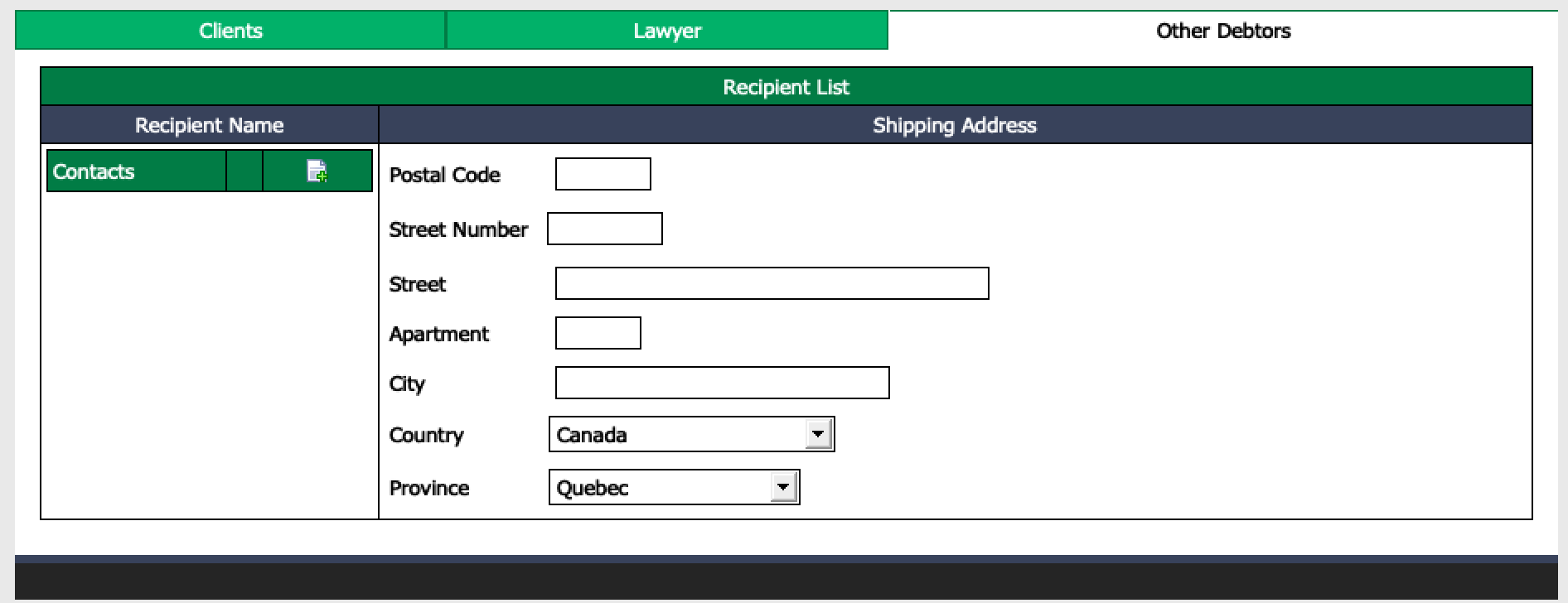
When adding an Other Debtor , you need to click on the Sheet with a + icon under Recipient Name.
Click on Submit after completing the necessary information.
If you want, the system can automatically generate a receipt for the client at this point (can be set up in your configurations).
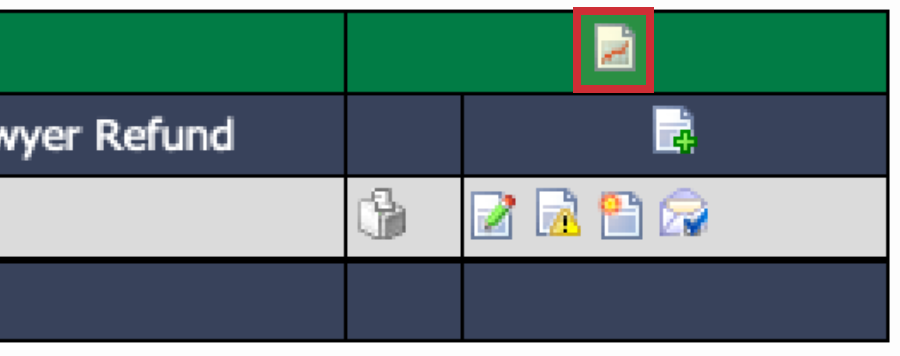
Once your trust deposit has been noted in the system, you may reprint a receipt if necessary or cancel the deposit.

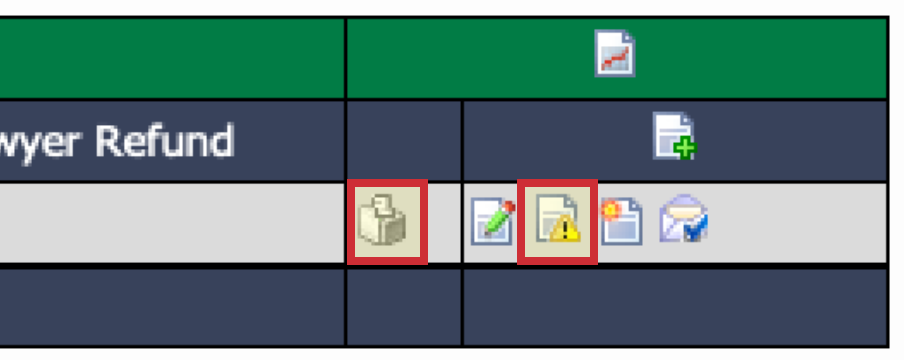
- You also have access to the activity that affected the trust account.
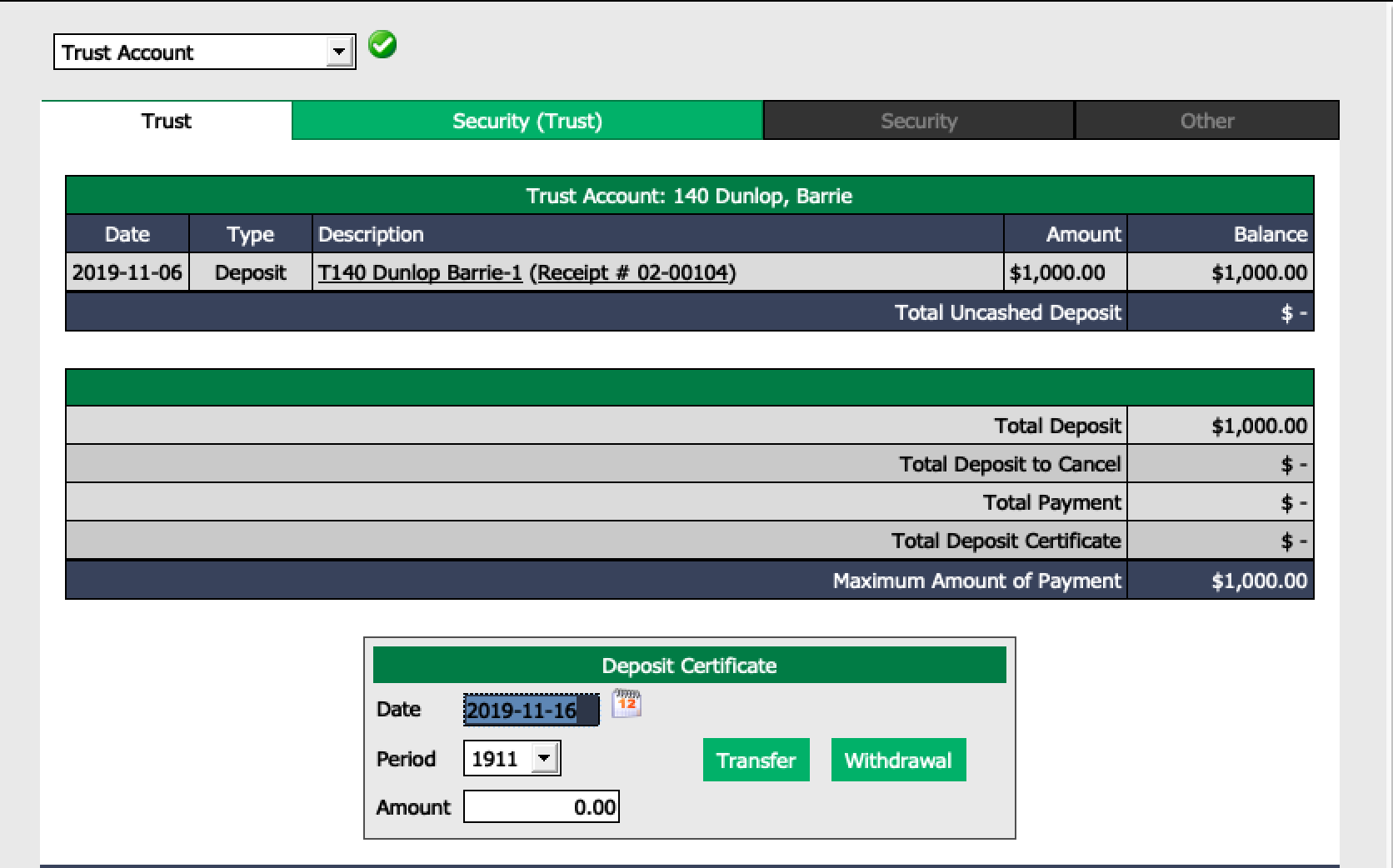
If automatic deposits are set up for your office, no further steps are required as the funds have been automatically deposited into your trust account through the program.
If automatic deposits are NOT set up in your program, you will complete the deposit information exactly the same, except you will leave the Automatic Deposit section blank.
When you click on Submit , the system registers that you have a trust deposit attached to this deal but it is now waiting for you to finalize the deposit into the trust account. In fact, you will have a message on your home page: "Uncashed Deposits".
Complete the Deposit
- To complete the deposit (when automatic deposits are not set up), from Main menu, click on the Cash Register icon.
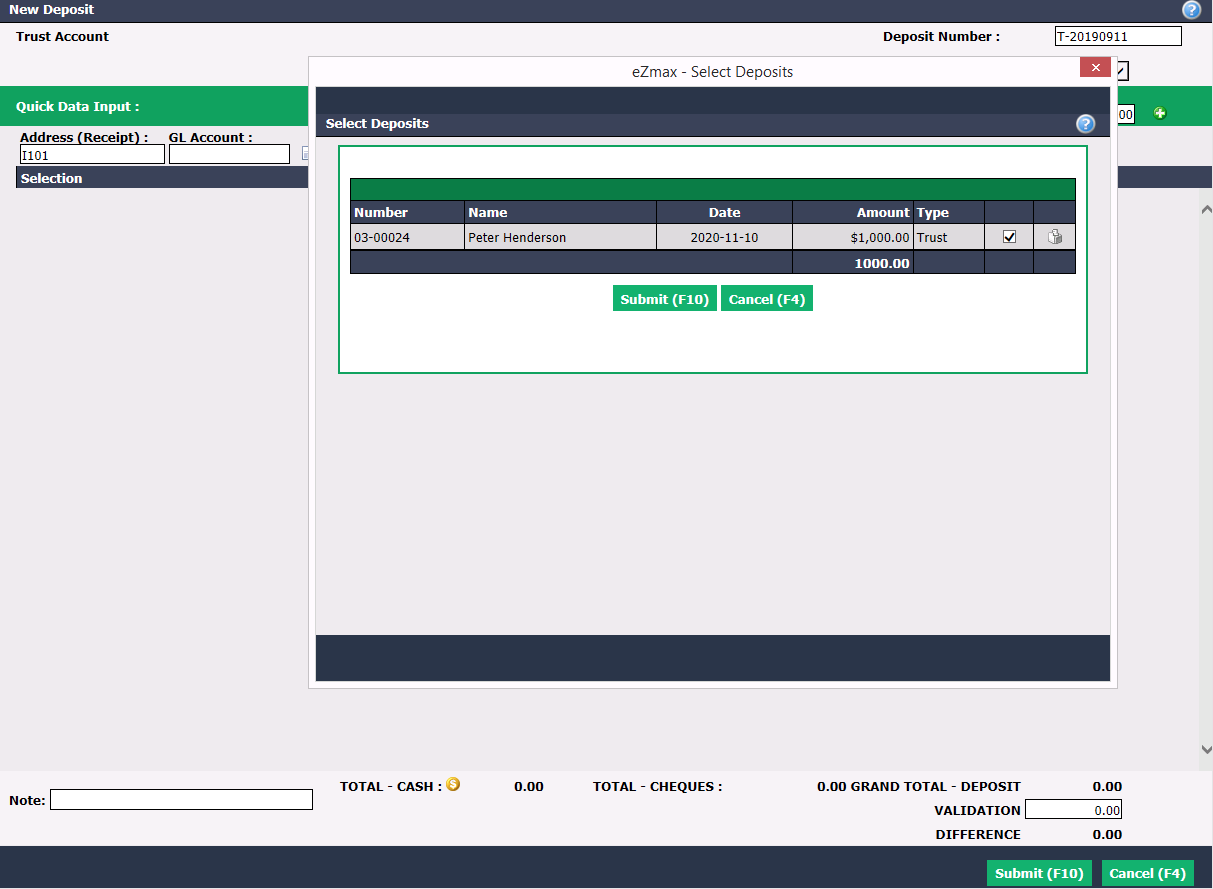
Select "Trust Account" as your Bank Account and click on the Check Mark button.
Enter a Deposit Number or some kind of identifier, for example T for Trust, and the date of the deposit (T-20190911).
Enter the Date the funds were physically deposited into the account.
From the Address (Receipt) field, type the address associated with the deposit and select it from the list.
The system will then display the trust deposit in question. Select this deposit if it is not selected already and click on Submit.
The system will fill in your deposit with the amount of the trust deposit. Click on Submit.
The trust deposit has now been attached to the deal and registered in the system as being deposited into the bank.
Warning
If you get this message, it means you don’t have any contact (owners or buyers) in your file. You need to add at least one contact.