

English
Pay Preparation (Payroll)
Pay Preparation
Pay preparation allows you to only prepare pay (without producing them immediately) and enter them on the home page or in the system so that you can then produce them all at the same time.
- From Main menu, click on Money Envelope icon

or Payroll >> List of Pay Preparations, click on Actions >> New Pay Preparation.
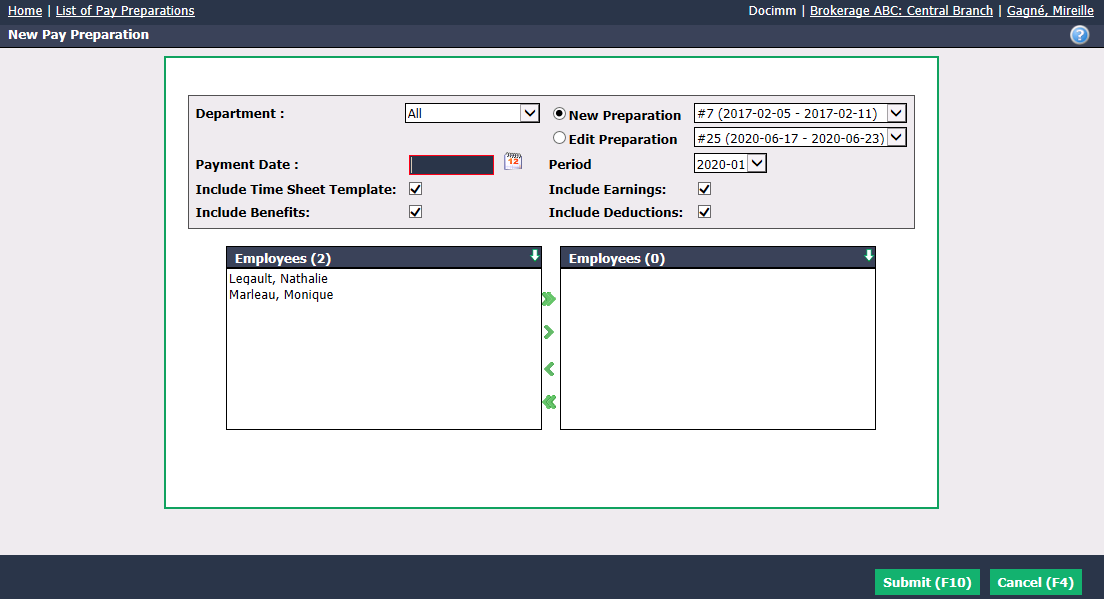
Check the appropriate box if it’s a New Preparation or if you want to Edit Preparation and select the desired pay.
Select the desired Department , if applicable to your agency.
Enter the Payment Date. The pay Period will be automatically selected based on the payment date entered.
Warning
Please make sure that the date entered is the same as the selected accounting period.
Check the boxes if you want to Include the Time Sheet Template , Include Benefits , Include Earnings and Include Deductions.
Select the desired Employees using the green arrows. The double arrow allows you to select all employees with one click, while the single arrow selects only one at a time.
You can double-click on an employee to select it instead of using the green arrow.
- Click on Submit and a table of pay preparation will appear.

You can change information like Hours (time sheet), $ Time (time sheet), $ Earnings , $ Benefits and Deductions by clicking on the appropriate number or amount.
Click on Recalculate if you have made any changes.
Display Hours : Allows you to display the number of hours for each of the hour categories.
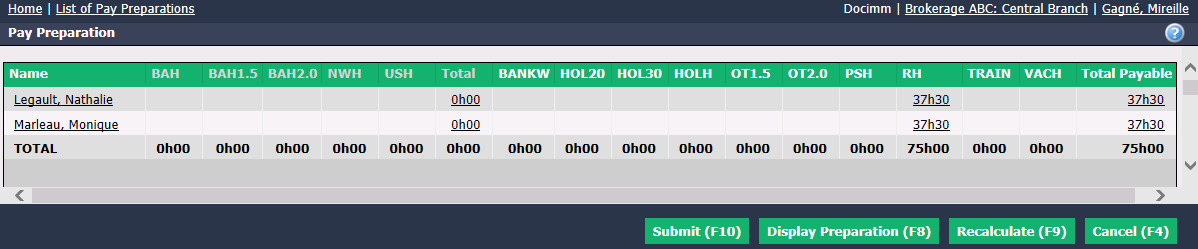
- Click on Submit and this window will appear:
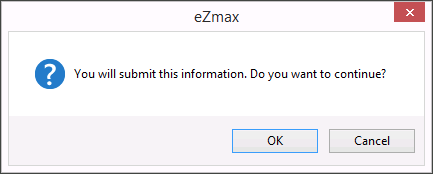
- Click on OK if you are sure of your information and the pay will be prepared.
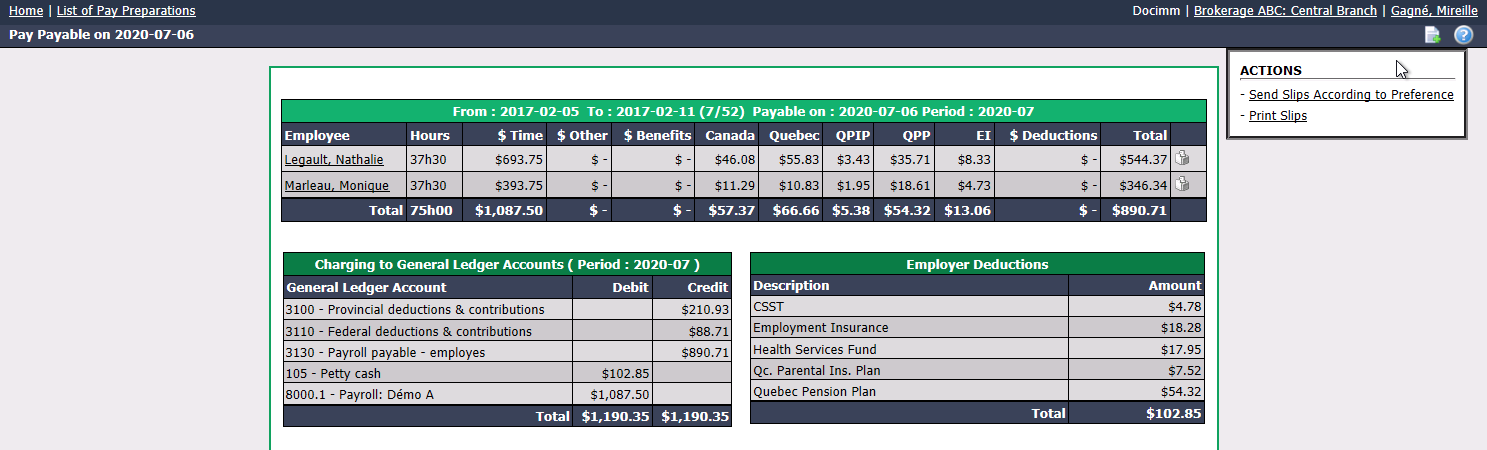
From the Actions menu, you have the option to:
- Send Slips According to Preference: That is, according to the sending method selected in the employee’s profile ("Print" or "E-mail"). For more information, please see the article Adding/Editing an Employee.
- Print Slips
By clicking on the name of an Employee , you can view its payment history.
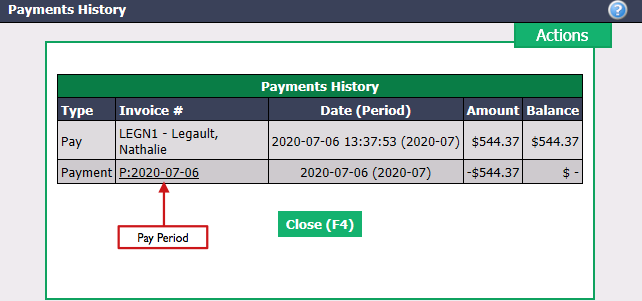
- Click on the desired pay period and the details of the pay preparation will appear.
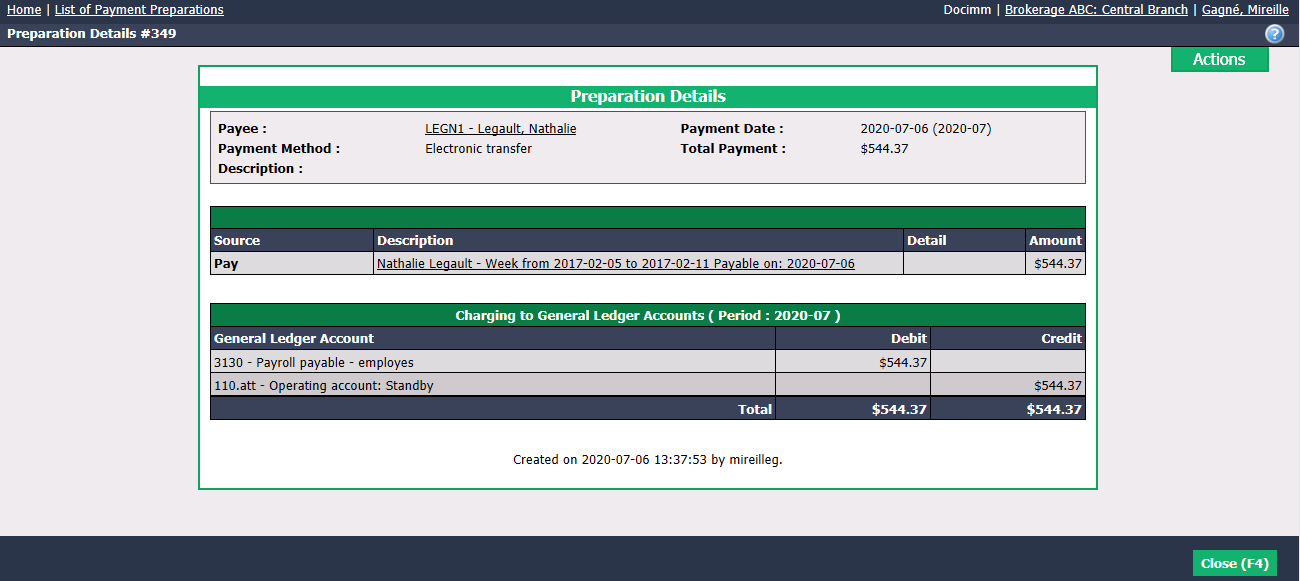
- The pay preparations appear on the home page under "Non-Transmitted Electronic Transfers" and "Cheques in Preparation".
New Manual Pay Preparation
Manual pay preparation can be used to adjust the time bank (vacation, sick leave and bank hours) or to manually change hours, benefits and/or deductions.
From Main menu >> Payroll >> List of Pay Preparations.
Click on Actions >> New Manual Pay Preparation.
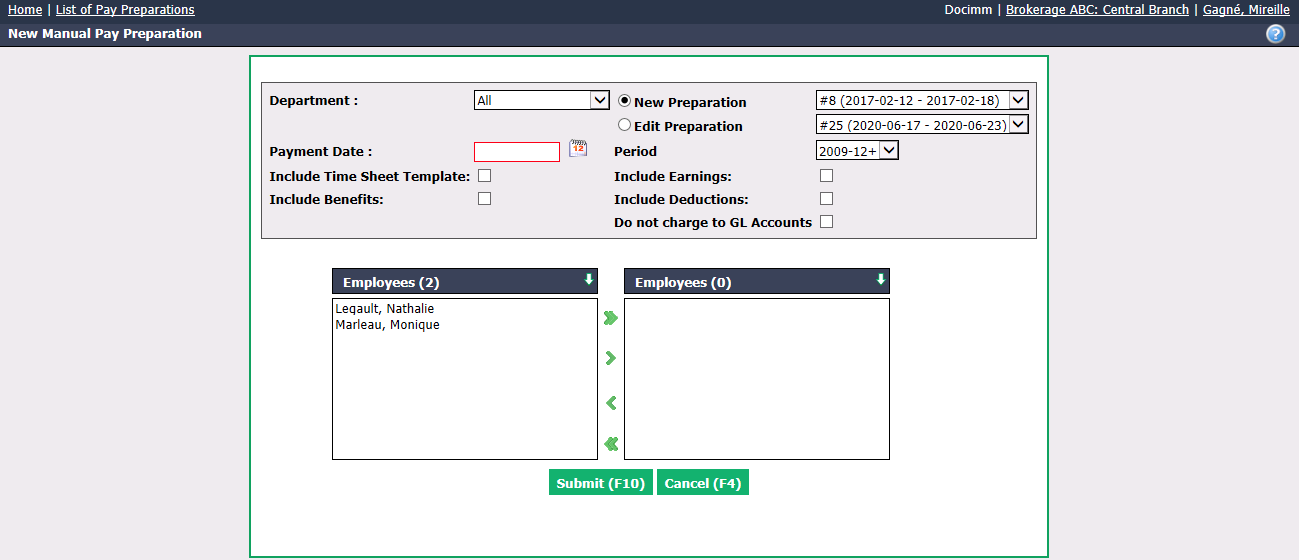
Check the appropriate box if it’s a New Preparation or if you want to Edit Preparation and select the desired pay.
Select the desired Department , if applicable to your agency.
Enter the Payment Date. The pay Period will be automatically selected based on the payment date entered.
Warning
Please make sure that the date entered is the same as the selected accounting period.
Uncheck all boxes Include the Time Sheet Template , Include Benefits , Include Earnings, Include Deductions. and Do not charge to GL Accounts if you want to adjust the time bank.
Check all boxes Include the Time Sheet Template , Include Benefits , Include Earnings, Include Deductions. and Do not charge to GL Accounts if you want to make a payroll with manually calculated deductions.
Select the desired Employees using the green arrows. The double arrow allows you to select all employees with one click, while the single arrow selects only one at a time.
You can double-click on an employee to select it instead of using the green arrow.
- Click on Submit and a table of manual pay preparation will appear.
Adjust Time Bank
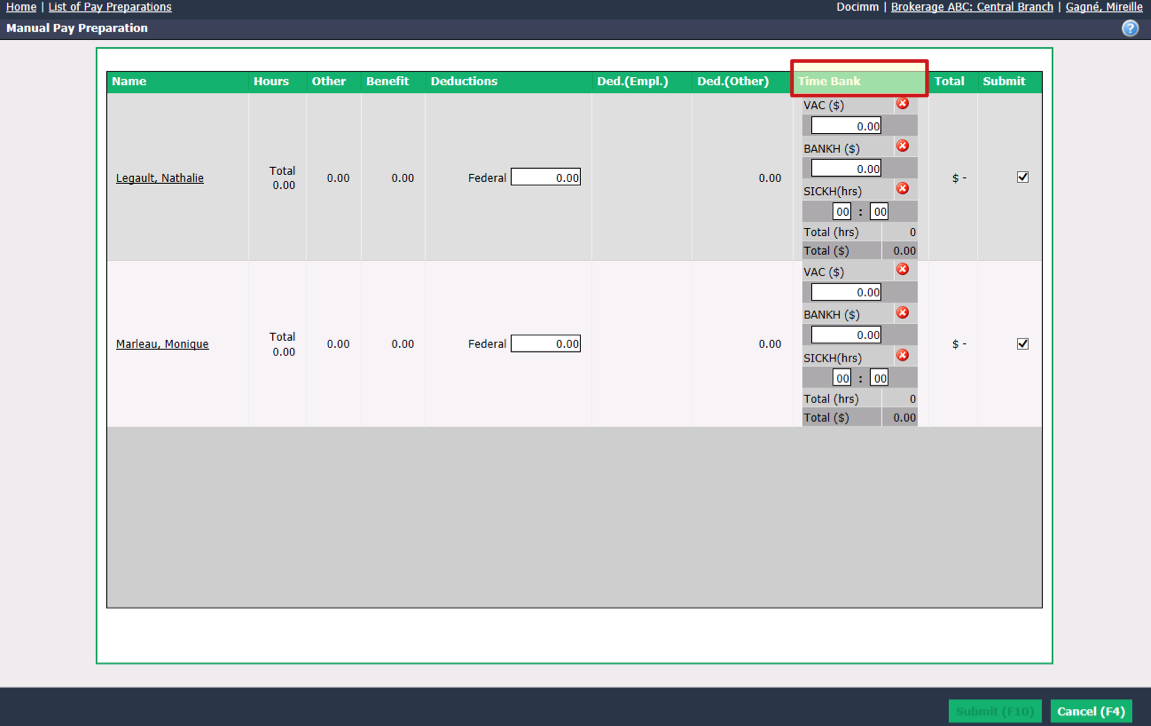
- Make the desired adjustments in Time Bank.
Manually Change Hours, Benefits and/or Deductions
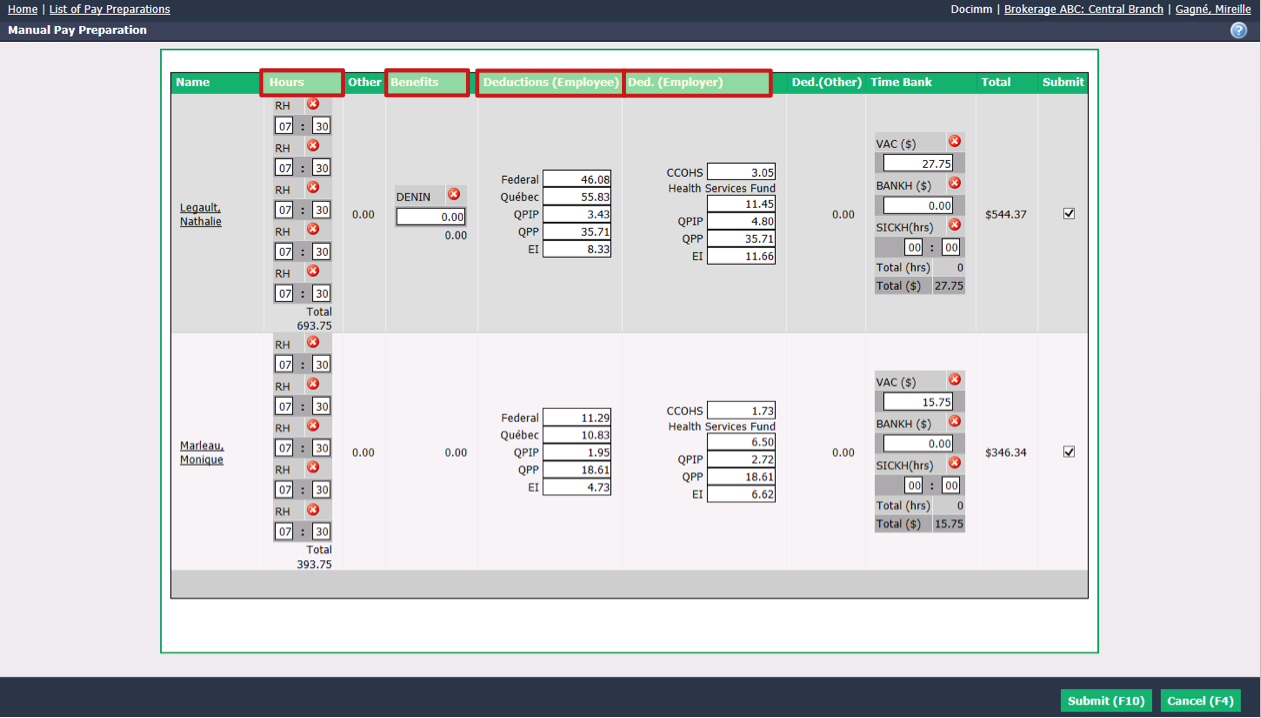
Make the desired changes in Hours , Benefits , Deductions (Employee) and/or Ded. (Employer).
When you have completed the adjustments or changes, click on Submit and this window will appear:
- Click on OK if you are sure of your information.