English
Payroll - Vacation payment
When configuring an employee, it is possible to choose to accumulate the vacation amount in a time bank at the selected rate (example: 4%). When the employee wants to take a vacation, he will be paid from his time bank. It is possible to pay vacation to an employee in 2 ways: From the pay preparation or from the list of earnings.
Method 1: From pay preparation
For an employee with an hourly wage.
- From Main menu, click on Money Envelope icon

or Payroll >> List of Pay Preparations, click on Actions >> New Pay Preparation.
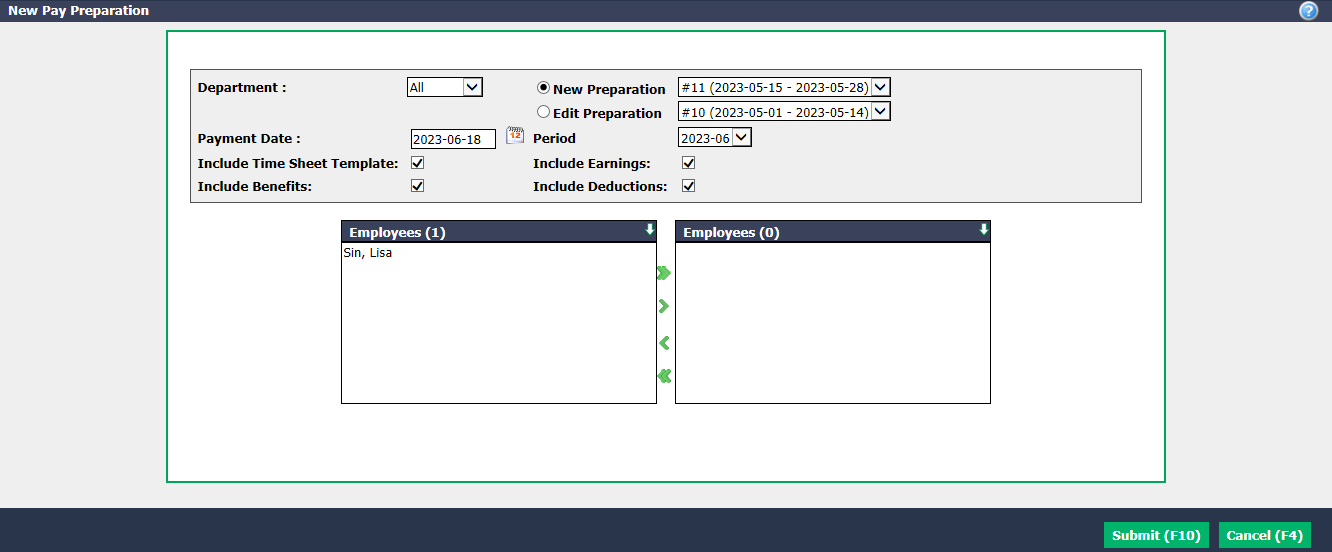
Enter Payment Date.
Check New Preparation. and select the desired interval.
Enter the Payment Date. The pay Period will be automatically selected based on the payment date entered.
Warning
Please make sure that the date entered is the same as the selected accounting period.
- Select the desired Employees using the green arrows. The double arrow allows you to select all employees with one click, while the single arrow selects only one at a time.
You can double-click on an employee to select it instead of using the green arrow.
- Click on Submit and a table of pay preparation will appear.

- Click on the number of Hours of the employee who took vacation.
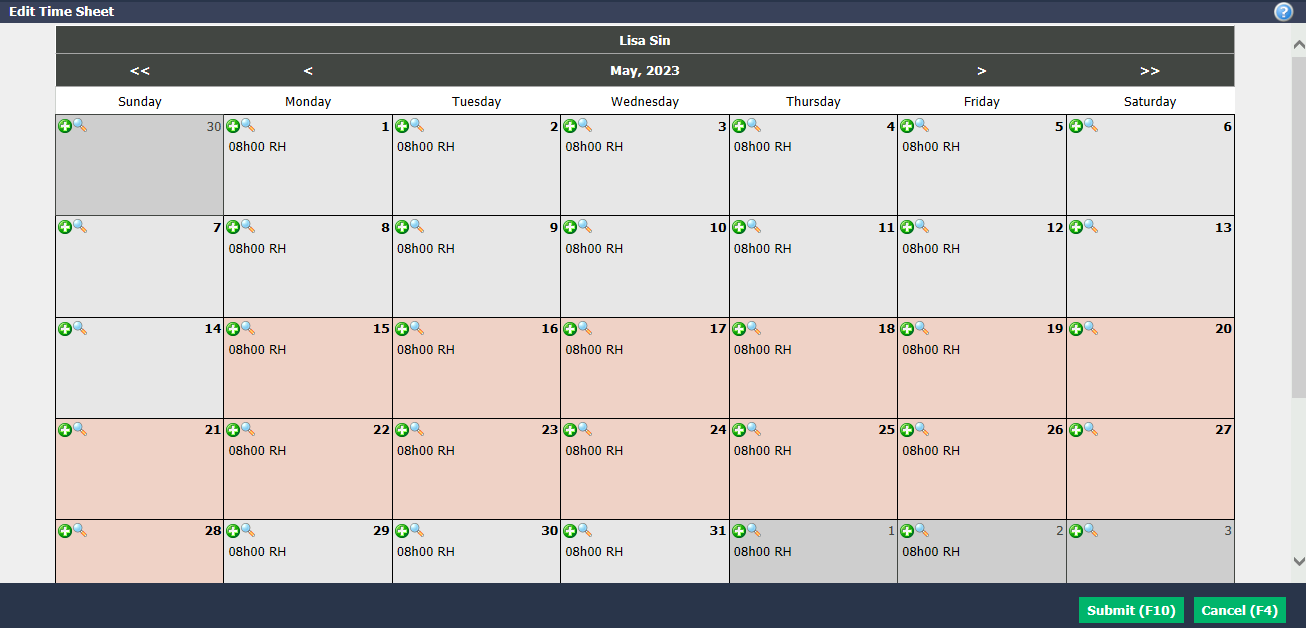
- In the box of the desired day, click on the green +.
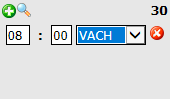
Indicate the desired number of hours and select "VACH".
Click on Submit.
Click on Recalculate.
Click on Submit and this window will appear:
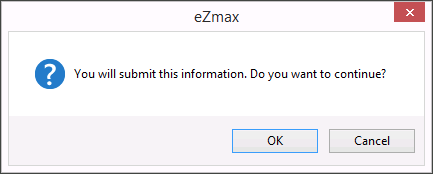
Click on OK if you are sure of your information and the pay will be prepared.
In the employee’s time bank, the number of vacation hours will be reduced.
Method 2: From list of earnings
For an employee with a fixed salary.
- From the employee record, click on Actions >> Edit List of Earnings.
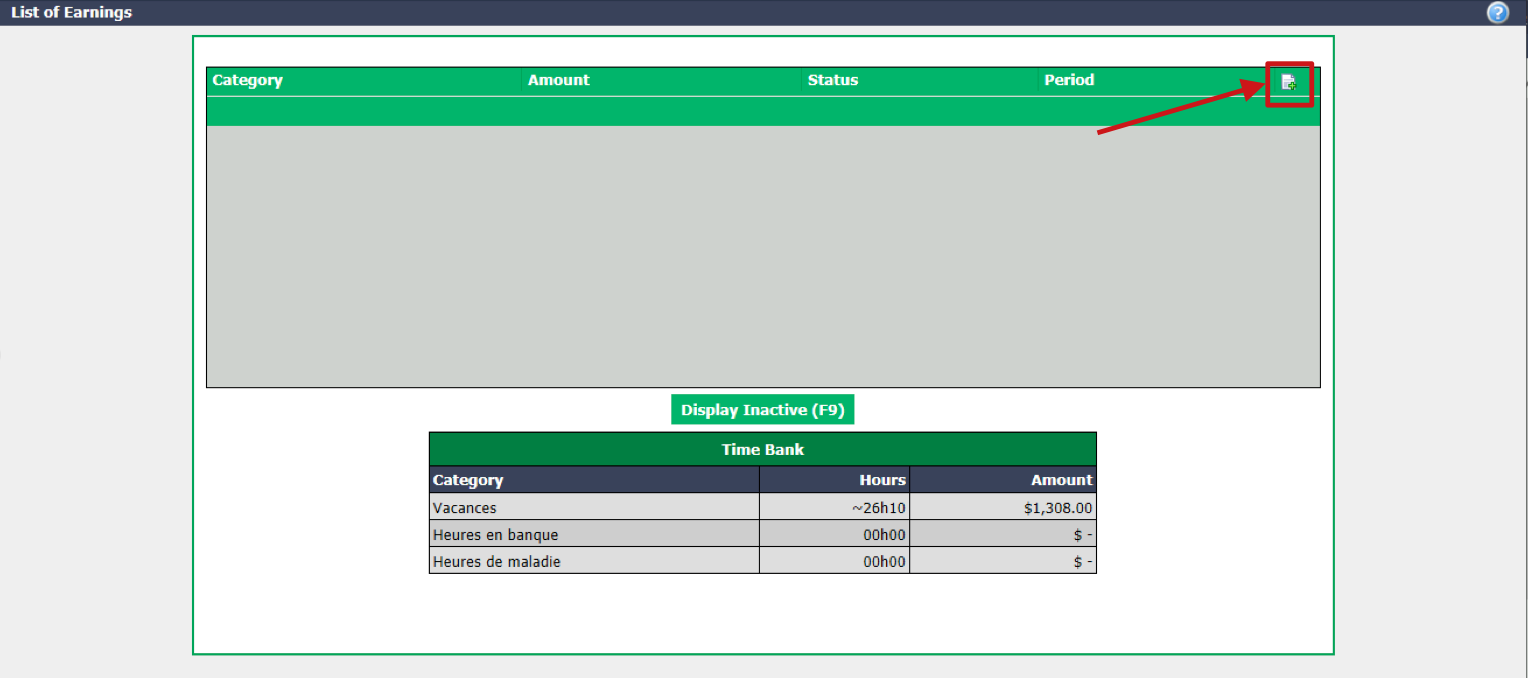
- Click on the Sheet with a + icon at the top right to add earnings.
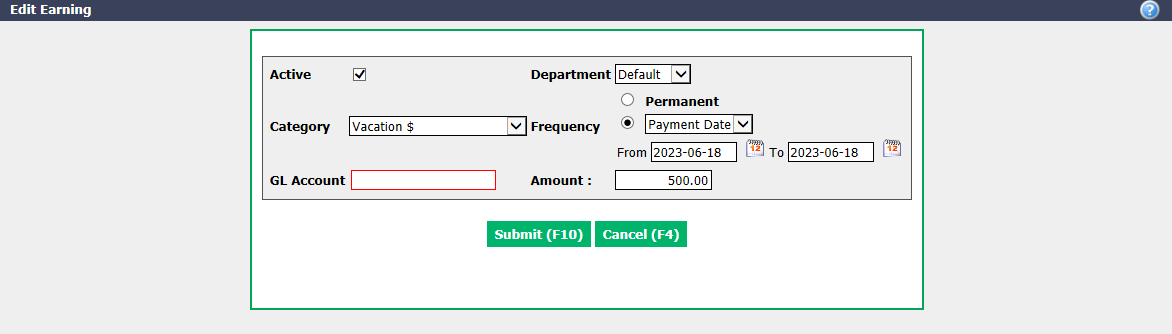
Category : "Vacation $".
GL Account : "Payroll".
Frequency : Select "Payment date" and enter the date you pay the vacation in the From and To fields.
Amount : Enter the amount to be paid (according to the amount indicated in the employee’s time bank).
Click on Submit.
Prepare a pay as described in method 1.
The vacation amount will appear in the $ Earnings column.

Vacation Report
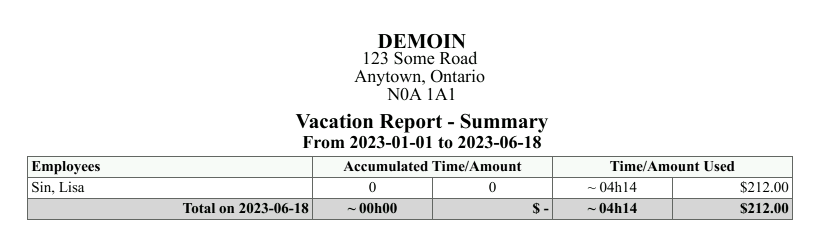
It is possible to produce a report that displays the balance of time and activity (accrued, used, remaining) of vacation time for a selected employee in a specific date range.
From Main menu >> Reports >> Payroll Reports >> Vacation Report.
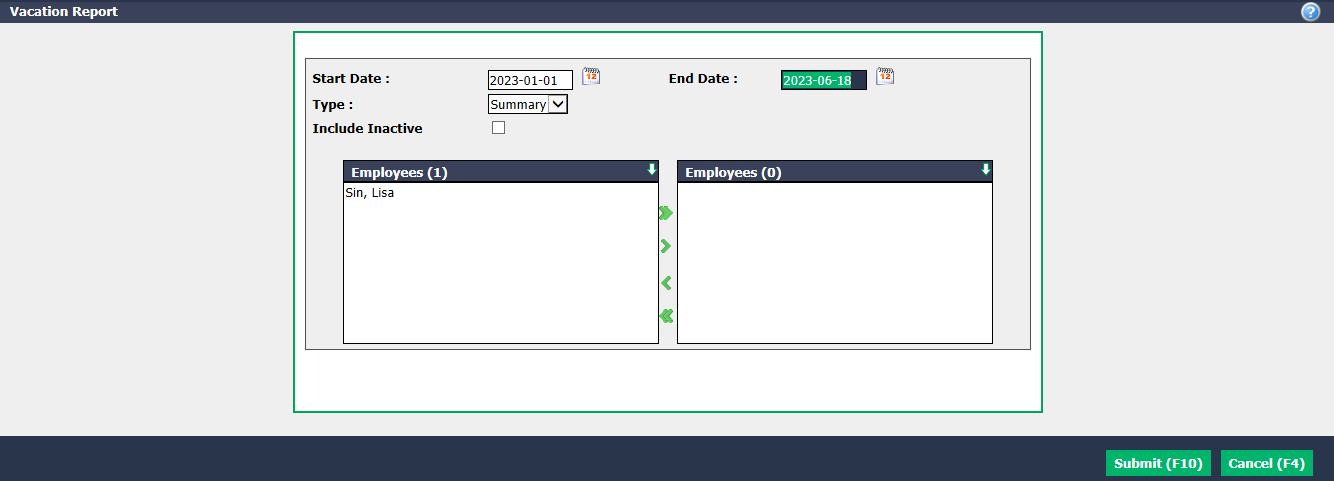
Enter the desired dates and select the desired report Type (summary or detailed).
Select the desired Employees using the green arrows. The double arrow allows you to select all employees with one click, while the single arrow selects only one at a time.
You can double-click on an employee to select it instead of using the green arrow.
- Click on Submit.