

English
Error in Payment Deductions of a Commission Calculation with Payment Preparation or Uncashed Cheque
In the case of a commission calculation with a payment preparation and a printed cheque that has not yet been cashed, if you discover that there is an error in payment deductions other than commission calculations and commission fees (i.e. other deductions, overpayments, advances and/or invoices), you have the option to correct the error without reversing the commission calculation. To do so, there are 3 steps to follow:
- Cancel payment preparations and/or cheque payments (uncashed) in the commission account
- Cancel deposits in the general account
- Correct payment deductions
1- Cancel Payments in the Commission Account
The first step is to cancel all payment preparations (even the one to transfer an amount from the commission account to the general account) and cheques that have not yet been cashed by the recipients in the commission account.
- From the closed deal, go to the "Deal" section where the banking transactions are located, in the "Commission" tab.

For the payments, there are three options:
- "C: Cheque Number": Means that there is a printed cheque. If the cheque has not yet been cashed, you can cancel it. If the cheque has already been cashed, you cannot cancel it.
- "P: Preparation Date": Means that there is a payment preparation. You can cancel it.
- "T: Transfer Number": Means that there is an electronic transfer transmitted. You cannot cancel it.
In this article, payments in the commission account are two payment preparations and a printed but uncashed cheque.
Payment preparation
Under the Reference # field, click on "P: Preparation Date" to display the preparation details.
Click on Actions >> Cancel Payment Preparation.
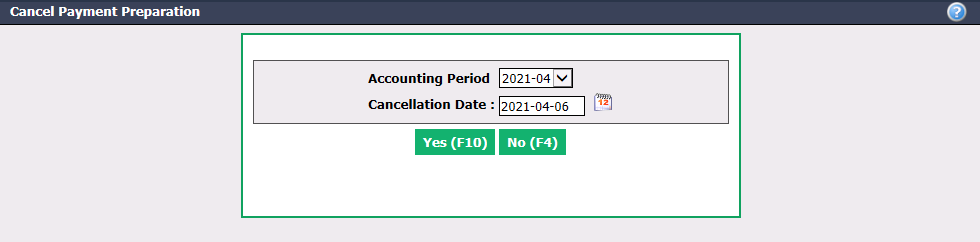
- Verify if the Cancellation Date is right for you (date of payment preparation is automatically displayed). The Accoun****ting Period will be automatically selected according to the reversal date entered.
Warning
Please make sure that the date entered is the same as the selected accounting period.
Click on Yes.
Repeat these steps for the other payment preparation.
Printed but uncashed cheque
- Under the Reference # field, click on "C: Cheque Number" to display the preparation details.
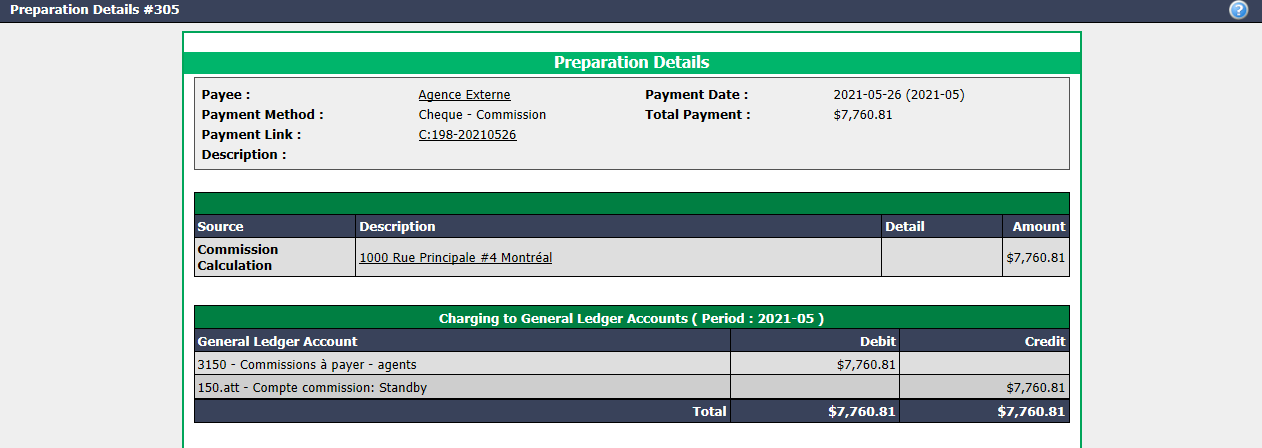
Click on Payment Link.
Click on Actions >> Cancel Payment by Cheque.
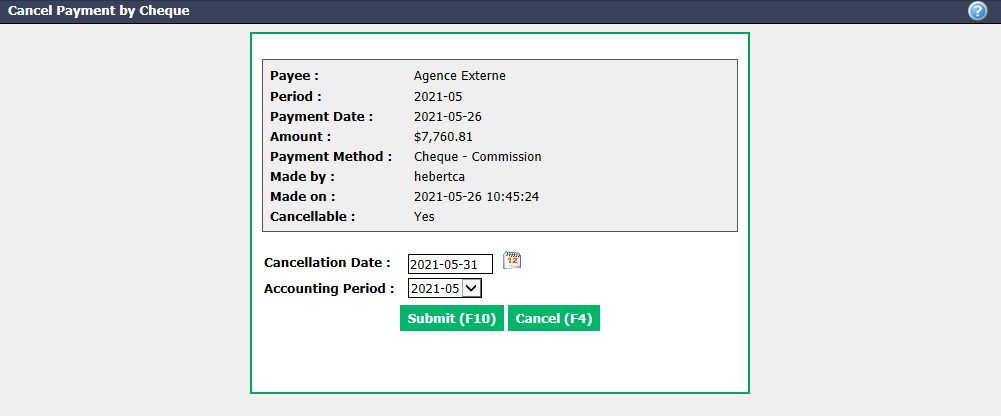
- Verify if the Cancellation Date is right for you (today’s date is automatically displayed). The Accounting Period will be automatically selected according to the cancellation date entered.
NOTE: If the uncashed cheque was printed in an accounting period prior to today, the cancellation date must be the same if the period is open. Otherwise, put today’s date.
Warning
Please make sure that the date entered is the same as the selected accounting period.
- Click on Submit.
2- Cancel Deposits in the General Account
The second step is to cancel the deposits in the general account.
- From the closed deal, go to the "Deal" section where the banking transactions are located, in the "General" tab.

For the deposits, there are two options: Individual and Grouped.
- Individual: One deposit only.
- Grouped: Several pending deposits.
In this article, you will see the 2 types of deposit in the general account.
Individual deposit

- Under the Reference # field, click on the deposit number.
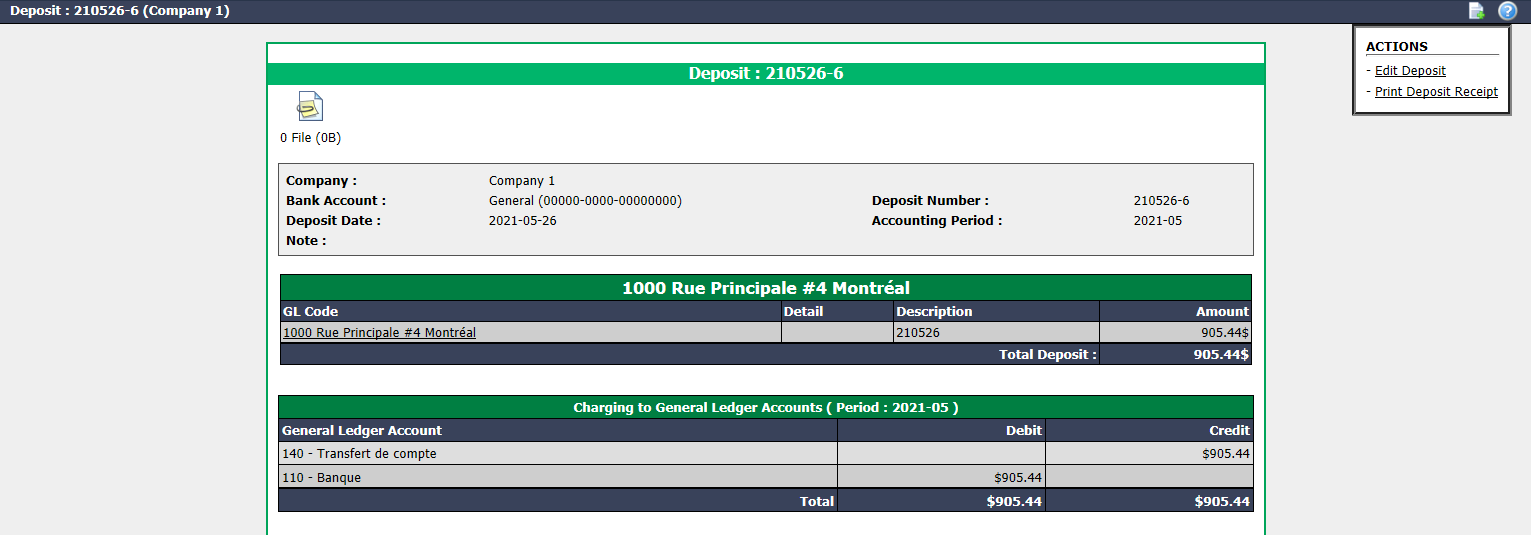
- Click on Actions >> Edit Deposit.
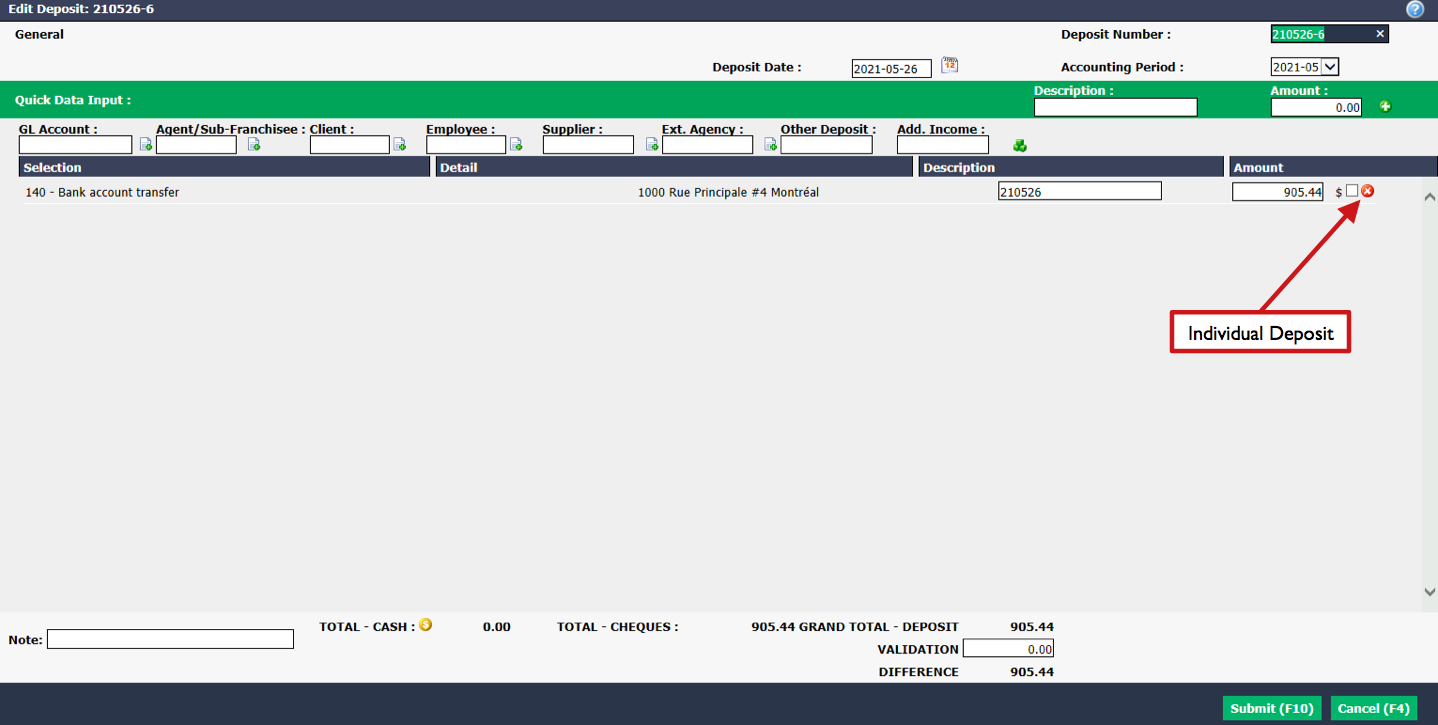
Click on the Red X icon to the right of the desired deposit.
Click on Submit.
Grouped deposit (pending)
- From Main menu, click on the Cash Register icon
or Accounts Receivable >> List of Deposits, click on Actions >> New Deposit.
From the drop-down list, select "General" for the Bank Account.
Click on the Check Mark button.
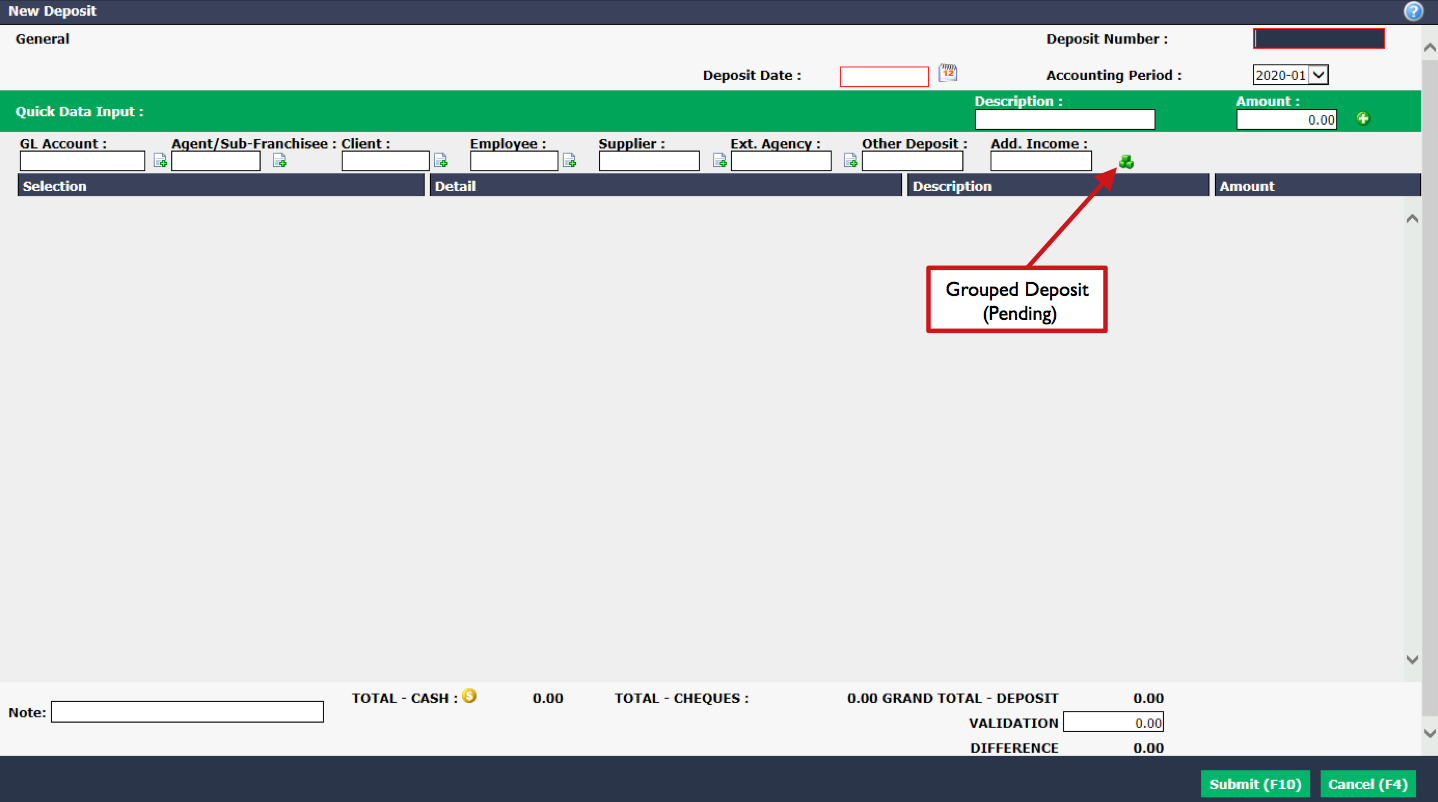
- Click on the Green Cubes icon (Pending Automatic Deposit).
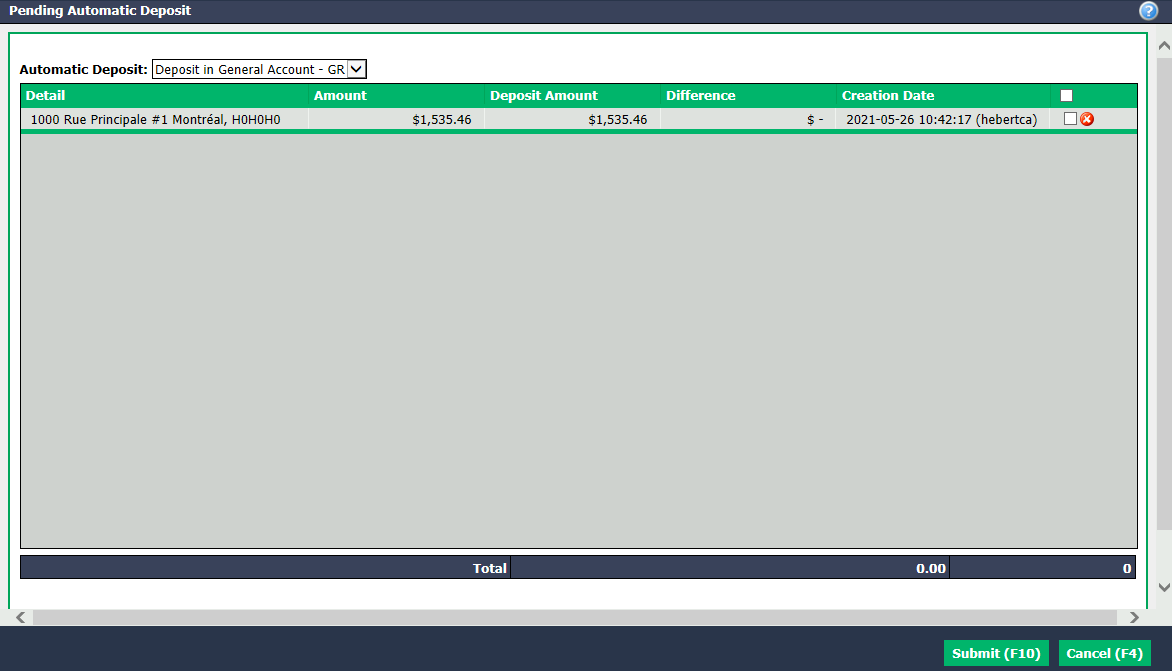
Click on the Red X icon to the right of the desired deposit.
Click on Submit.
2-**Correct Payment Deductions
Once all the payments in the transaction are cancelled, you can correct the payment deductions other than commission calculations and commission fees, i.e. other deductions, overpayments, advances and/or invoices.

- From the home page, click on the number to the right of the "Commissions Payable" warning or from Main menu >> Real Estate >> List of Commissions Payable.
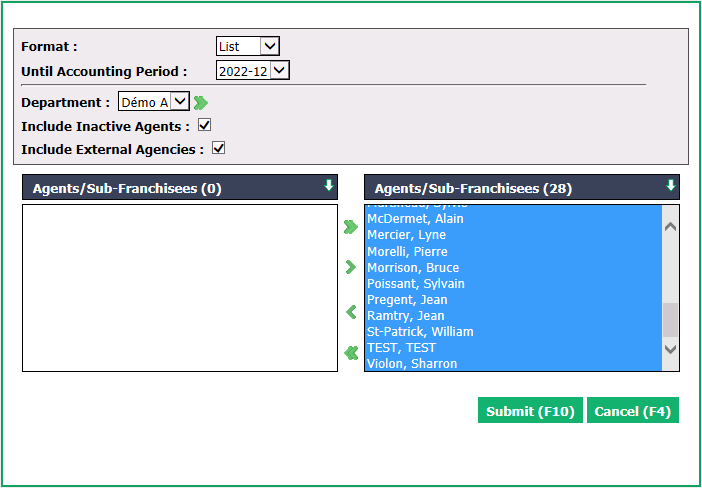
- All the agents will be selected so click on Submit.
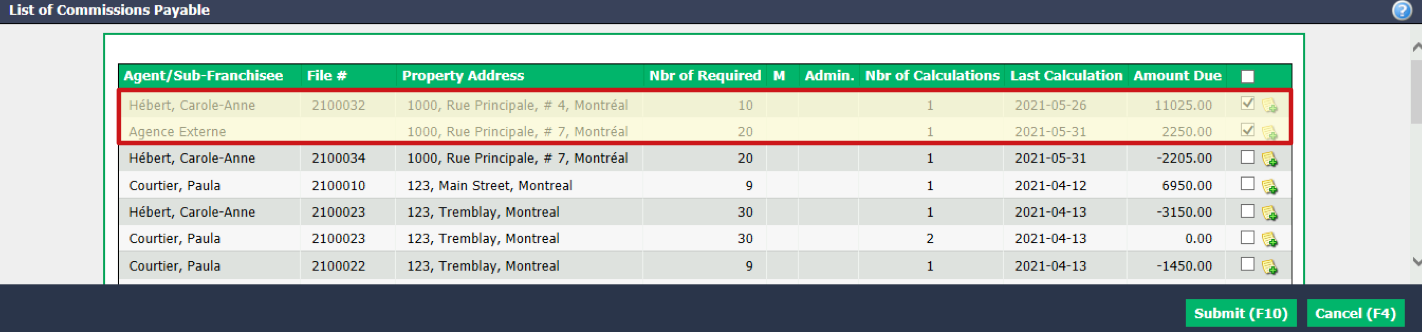
Check all the boxes of the desired combination: Agent/Sub-Franchisee + Property****Address.
Click on Submit and the payment deductions page for all agents involved in the transaction will appear.
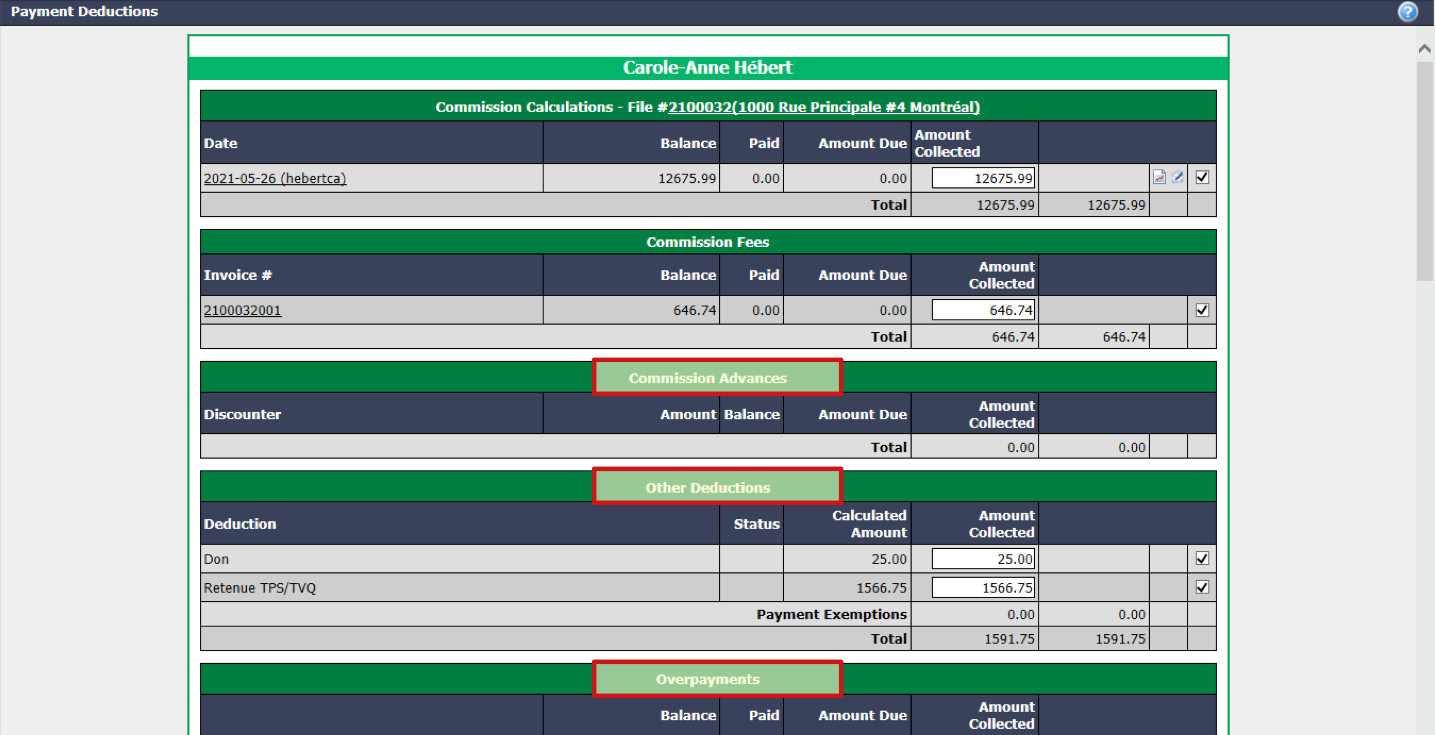
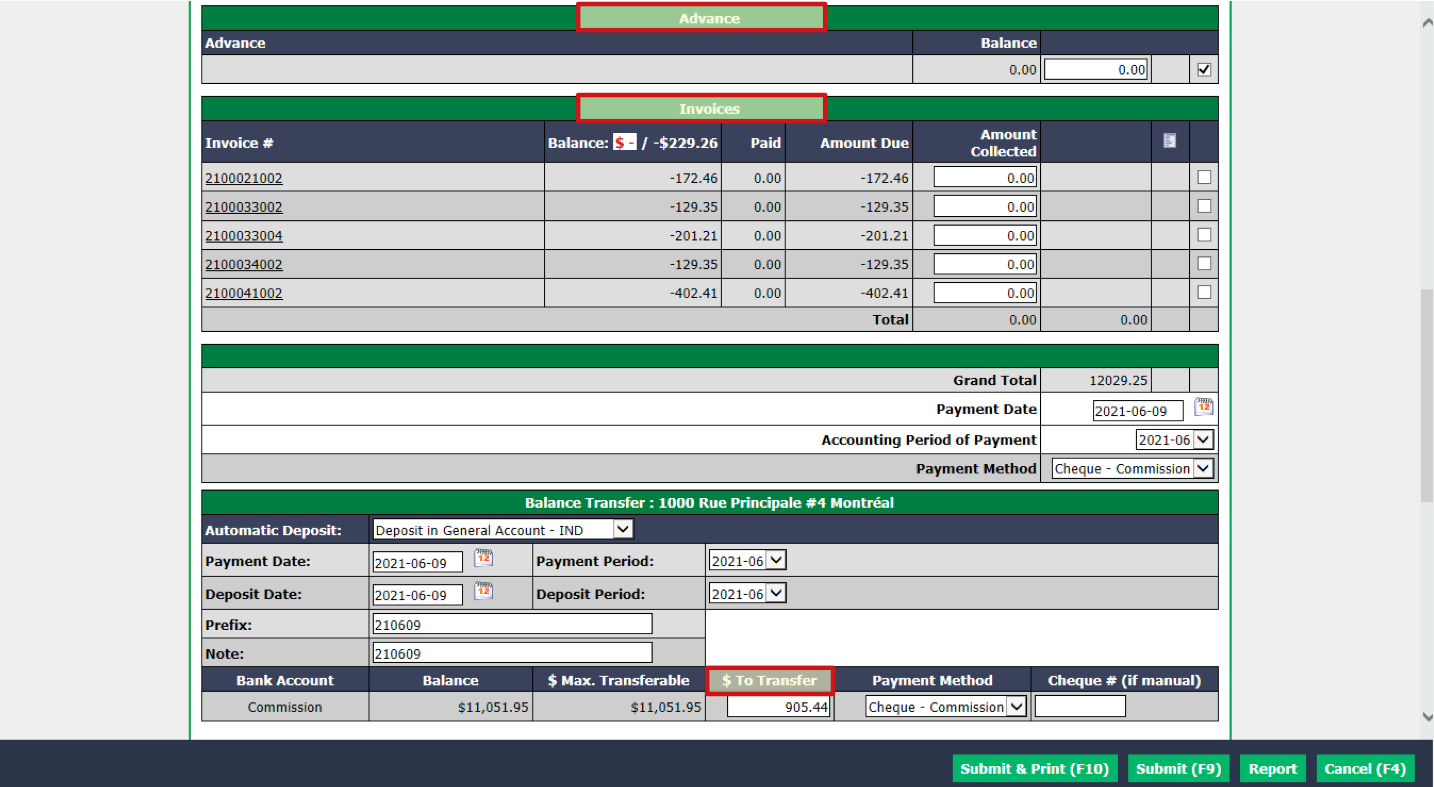
Make the desired corrections to other deductions, overpayments, advances and/or invoices from the desired agents.
If you have selected "Check Payment" as Payment Method and you click on Submit & Print, a new page will open and you will be able to enter the starting number of the cheque and print the cheque immediately.
If you click on Submit , this payment preparation will be displayed on the home page under "Cheques in Preparation" or "Non-Transmitted Electronic Transfer", depending on the payment method selected. For more information, please see the articles Preparation of Payment by Cheque - Real Estate and Preparation of Payment by Electronic Transfer - Real Estate.