

English
New Purchase - Real Estate
In order to show full history of invoices entered and paid through eZmax, they will need to be entered through the Shopping Cart icon (New Purchase).
- From Main menu, click on the Shopping Cart icon

.
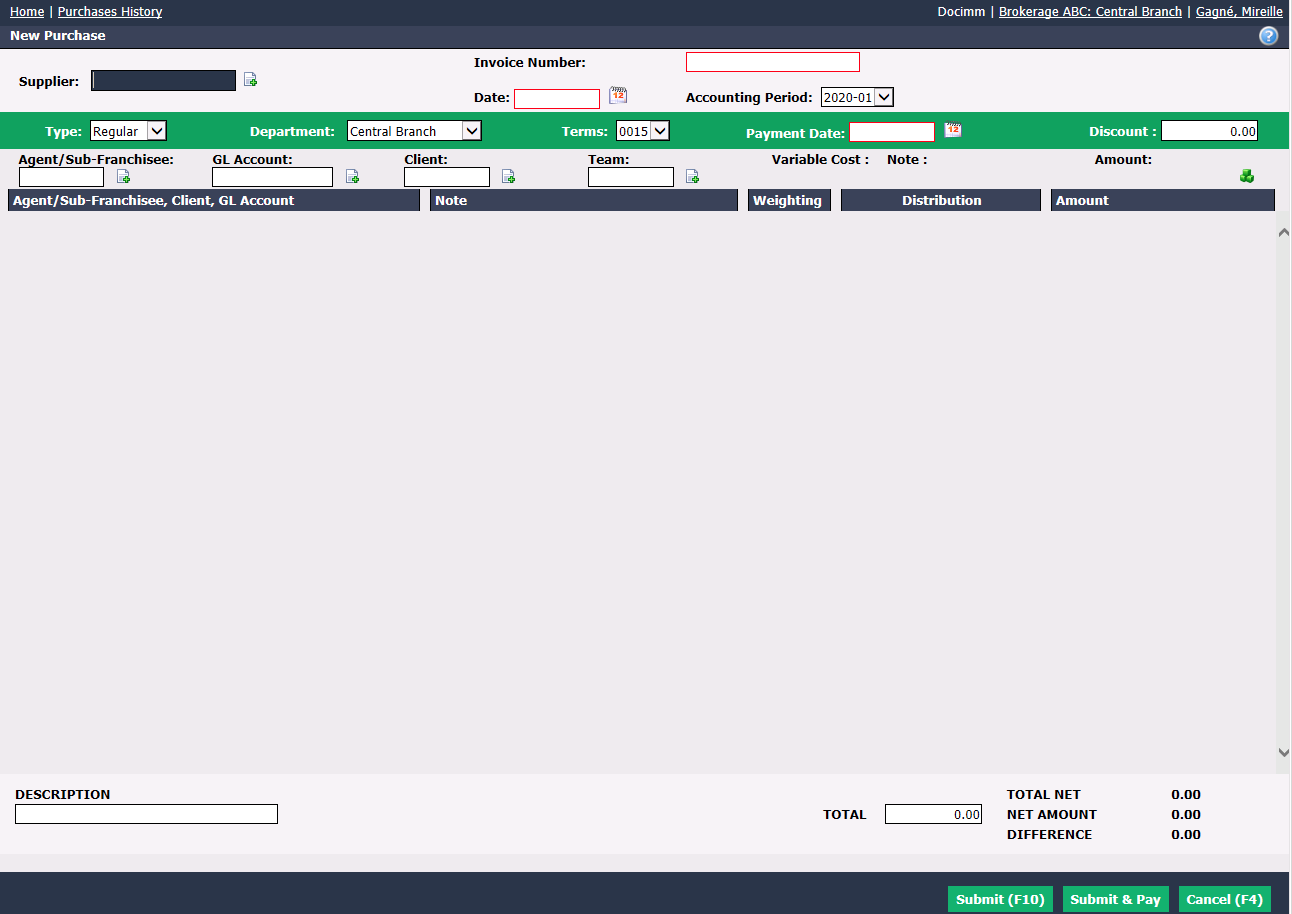
We recommend using the TAB key on your keyboard to move from one field to another.
Enter the supplier’s name in the Supplier field. (The Sheet with a + icon to the right of the field is used to add a new supplier in the system. For more information, please see the article Adding/Editing a Supplier.)
Ensure you enter the Invoice Number and Date of the invoice you want to enter. The Accounting Period will be automatically set by default based on the invoice date entered.
Warning
Please make sure that the date entered is the same as the selected accounting period.
- In the Accounting Period field, press the TAB key on your keyboard to go directly to the Total field (at the bottom of the screen) and enter the total amount of the invoice.
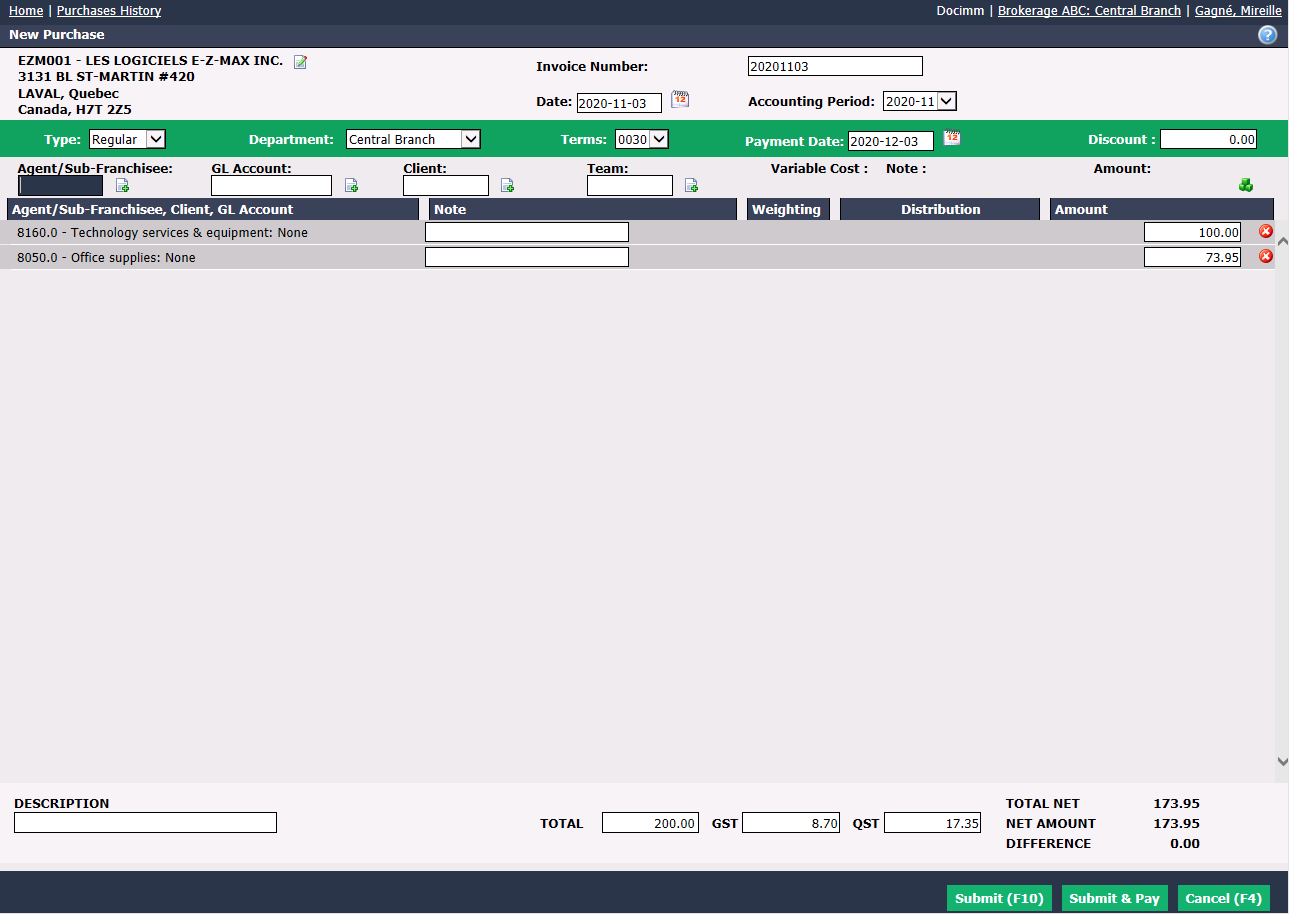
NOTE: eZmax will calculate taxes as appropriate but if different from invoice, enter amount from invoice directly in the proper tax field.
GL Account field will be automatically filled according to the preferences configured in the supplier profile but it can be changed manually. In this field, press the TAB key on your keyboard and eZmax will automatically fill the Amount (before taxes) field.
Click on the Green + icon.
To split the purchase across multiple GL accounts, enter the appropriate amount for the first GL account (before taxes) in the Amount field, click on the Green + icon and repeat the process for all applicable GL accounts.
Warning
At the end of the process, the Difference must be $0.00.
You can add a Note that will appear on the purchase information page.
Click on Submit to pay later or click on Submit & Pay to access the payment window and pay invoice immediately.
If you select Submit & Pay, you will be asked to confirm the payment method and the payment preparation window will appear.